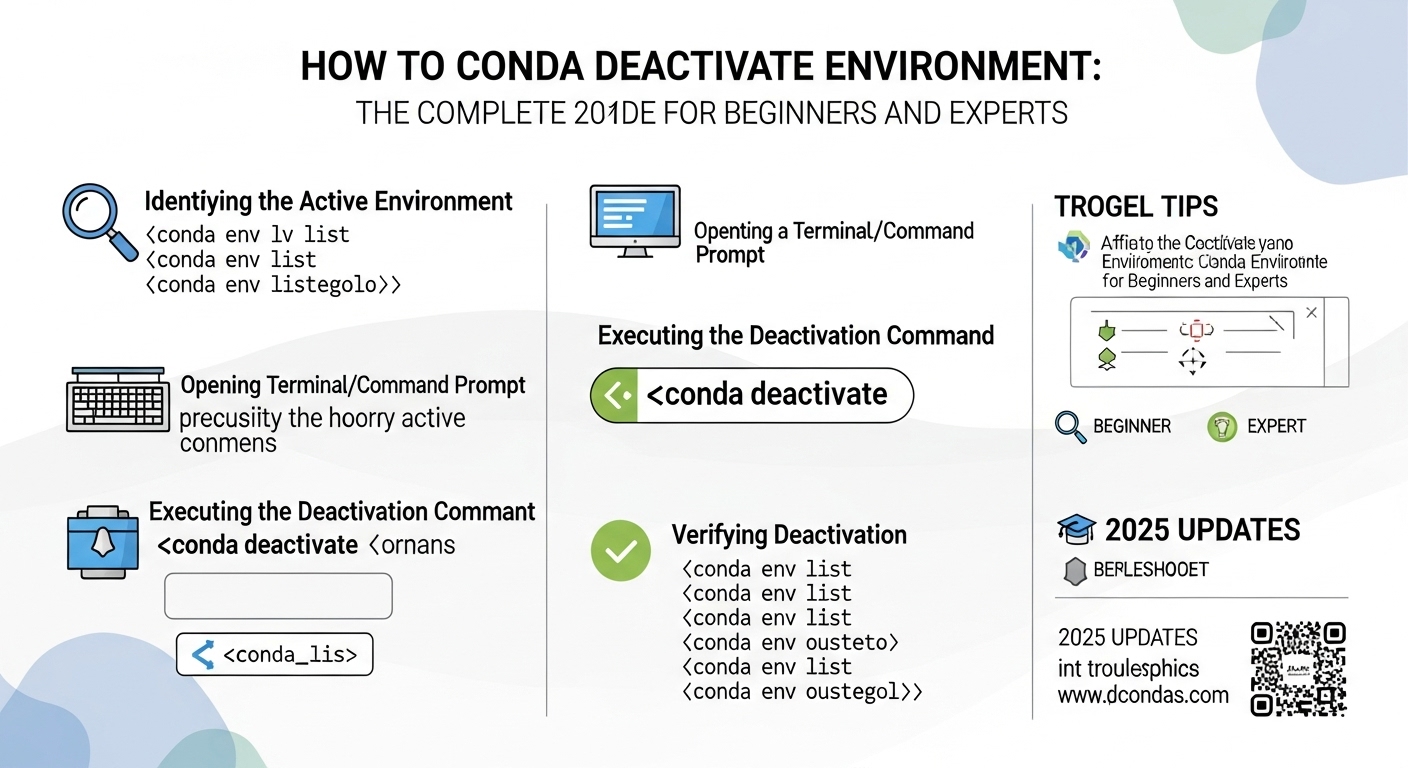
How to Conda Deactivate Environment: The Complete 2025 Guide for Beginners and Experts
11/16/2025 • Admin
How to Conda Deactivate Environment: The Complete 2025 Guide
If you work with Python, data science tools, machine learning libraries, or any project that depends on isolated environments, you know how essential Conda is. It helps you create clean, separate workspaces so different projects do not clash with each other. But one of the simplest, most important commands often gets misunderstood, especially by beginners. That command is how to conda deactivate environment.
Deactivating an environment seems easy on the surface, but the moment you start switching between multiple environments, running scripts, or working across terminals, the need to fully understand the command becomes clear. This guide gives you a complete, step-by-step explanation of how deactivation works, what happens behind the scenes, what to do when deactivation fails, and how to avoid common mistakes that developers make.
You will also find practical examples, environment management strategies, and helpful tools from FormatPilot’s text utilities, JSON beautifier, and file converters that can make your workflow smoother. To provide credibility and reference points, we also include authoritative sources such as Stack Overflow and W3Schools.
What Does It Mean to Conda Deactivate Environment?
Before exploring the exact command, it helps to understand what deactivation really means inside Conda. When you activate an environment, Conda modifies your shell session. It adjusts paths, points Python to a specific installation, and loads the dependencies that belong to that environment. The moment you deactivate it, Conda reverses those temporary changes.
In other words, when you conda deactivate environment, you are instructing Conda to stop using that isolated workspace and return to a broader context, usually the base environment. This resets your session so you can work on another environment or exit Conda entirely.
Why Deactivation Matters
- It prevents dependency conflicts between environments
- It ensures scripts run under the correct Python version
- It lets you safely remove or modify other environments
- It keeps your terminal session clean and predictable
Without proper deactivation, you may run into issues such as broken paths, incorrect library versions, or environments that refuse to delete.
How to Conda Deactivate Environment Using the Simple Command
The core command to deactivate any active environment is incredibly simple. Run this inside your terminal:
conda deactivateThis command does not require an environment name. Conda automatically detects which environment is active and reverses the activation settings for you.
What Happens After You Run the Command
Your terminal prompt usually changes. For example, if you were in an environment called myenv, your command prompt might look like this:
(myenv) user@machineAfter deactivating, it becomes:
(base) user@machineIf you run the command again, depending on your configuration, you may even return to a clean prompt without the base prefix.
Why the Command Does Not Need an Environment Name
Many beginners try something like:
conda deactivate myenvThis is incorrect. Unlike activation, deactivation is always applied to the currently active environment. The logic is simple. Conda cannot deactivate an environment you are not in. That means you never have to pass the environment name. The correct usage is always:
conda deactivateHow to Check Which Environment You Are Inside
Before you conda deactivate environment, it helps to know which environment is active. You can check using:
conda info --envsExample output:
# conda environments:base * /home/user/miniconda3
project_env /home/user/miniconda3/envs/project_env
ml_env /home/user/miniconda3/envs/ml_env
django_env /home/user/miniconda3/envs/django_env
The asterisk indicates the active environment. If the active one is not base, you know you are still inside a custom environment and should run conda deactivate.
How To Reactivate an Environment After Deactivation
Once you have deactivated, you can switch to another environment using:
conda activate environment_nameFor example:
conda activate ml_envThis takes you from the base session into a separate workspace so you can run your project with the correct dependencies.
Chaining Activations and Deactivations
Many developers switch between environments while monitoring multiple projects. Here is how that flow may look:
conda activate project_envconda deactivate
conda activate ml_env
conda deactivate
conda activate django_env
Each deactivation clears the previous environment’s settings so your new environment starts fresh.
Why You Cannot Delete an Environment Without Deactivating It First
One common issue is trying to remove an environment while still inside it. The error message often looks like this:
Environment is currently active. Deactivate it before removing.To fix this, simply run:
conda deactivateThen remove it safely:
conda env remove --name environment_nameThis prevents Conda from attempting to delete files that your session is still using.
What Happens If Conda Deactivate Environment Does Not Work?
Although the command is simple, there are situations where deactivation fails. These cases usually point to shell configuration issues or a corrupted environment.
1. Your Terminal Session Has Overwritten PATH Variables
If another tool modifies your PATH, Conda may not reverse its environment settings correctly. Restarting your terminal usually fixes this.
2. You Modified Your Shell Configuration Manually
Editing files like .bashrc, .zshrc, or .bash_profile can unintentionally break Conda’s activation scripts. Reload your shell configuration using:
source ~/.bashrc3. Conda Initialization Was Not Done Properly
To reinitialize Conda, run:
conda initThen restart your terminal.
4. You Are Using a Custom Shell or Remote System
Environments behave differently on SSH sessions or inside Docker containers. A fresh shell reload usually resolves the issue.
Advanced Use Cases: Nested Shells, Virtual Hosts, and Remote Environments
Some developers open multiple shells when testing code, hosting APIs, or working on microservices. In such cases, you might activate environments in nested layers. Each time you deactivate, Conda unwinds one layer of activation.
For example:
(myenv) user@machineconda deactivate
(base) user@machine
conda deactivate
user@machine
This approach helps when working in virtual machines, remote servers, or isolated dockerized environments.
How Conda Deactivate Environment Works Behind the Scenes
When you deactivate, Conda quietly performs several operations:
- Restores the previous PATH variable
- Removes environment-specific variables such as CONDA_PREFIX
- Switches Python to the base interpreter
- Restores default binaries
This ensures your terminal session behaves as if you were never inside that environment.
Combining Deactivation With FormatPilot Tools
Developers frequently switch environments when handling files, datasets, or configuration objects. FormatPilot helps simplify that process:
- Convert files when switching between data workflows
- Clean and beautify JSON when exporting Conda env files
- Convert CSV to JSON before feeding data into machine learning scripts
- Use text tools to clean logs or configuration notes
These tools save time, especially when moving between environments dedicated to API work, data engineering, or model training.
How Many Times Can You Deactivate Conda?
You can run the command multiple times in a row. Each execution takes you one step closer to a clean shell. Most developers use two levels:
- From environment to base
- From base to a clean terminal
This layered approach makes it simple to reset your workspace.
Best Practices for Using Conda Deactivate Environment
1. Always Deactivate Before Removing an Environment
It prevents file locks and errors.
2. Deactivate Before Switching Projects
This ensures you load the correct Python version and dependency chain.
3. Restart Your Terminal If You See Errors
Most deactivation issues are shell related rather than Conda related.
4. Keep Environment Names Clear and Descriptive
Names like api_env or nlp_project_env help avoid confusion during activation and deactivation.
5. Export an Environment Before Making Big Changes
Use:
conda env export > environment_backup.ymlYou can format this file with FormatPilot's JSON beautifier for readability.
Final Thoughts
Knowing how to conda deactivate environment properly is a foundational skill for anyone working in Python development, data engineering, or machine learning. While the command seems simple, understanding what happens underneath helps you avoid errors, maintain clean terminals, and manage environments confidently.
If you want to streamline tasks like file conversion, JSON cleanup, or text processing while switching between environments, explore the free tools available on FormatPilot.com.
FAQs
1. How do I conda deactivate environment in any terminal?
You can deactivate any active environment by running conda deactivate. No environment name is required.
2. Why does conda deactivate environment return me to base?
Conda uses a layered system. Deactivation moves you one level up, usually returning you to the base environment where your default Python installation is stored.
3. Can I conda deactivate environment if I am inside a nested shell?
Yes. Each time you run conda deactivate, Conda removes one activation layer until you reach a clean terminal session.
4. Why do I get errors while trying to conda deactivate environment?
Common reasons include corrupted PATH variables, modified shell profiles, or incomplete Conda initialization. Restarting the terminal usually fixes these issues.
5. Is it necessary to conda deactivate environment before deleting it?
Yes. Conda cannot remove an environment you are actively using. Always deactivate before removing it.
6. Does conda deactivate environment remove installed packages?
No. Deactivation only resets your terminal session. It does not modify or uninstall any environment files.