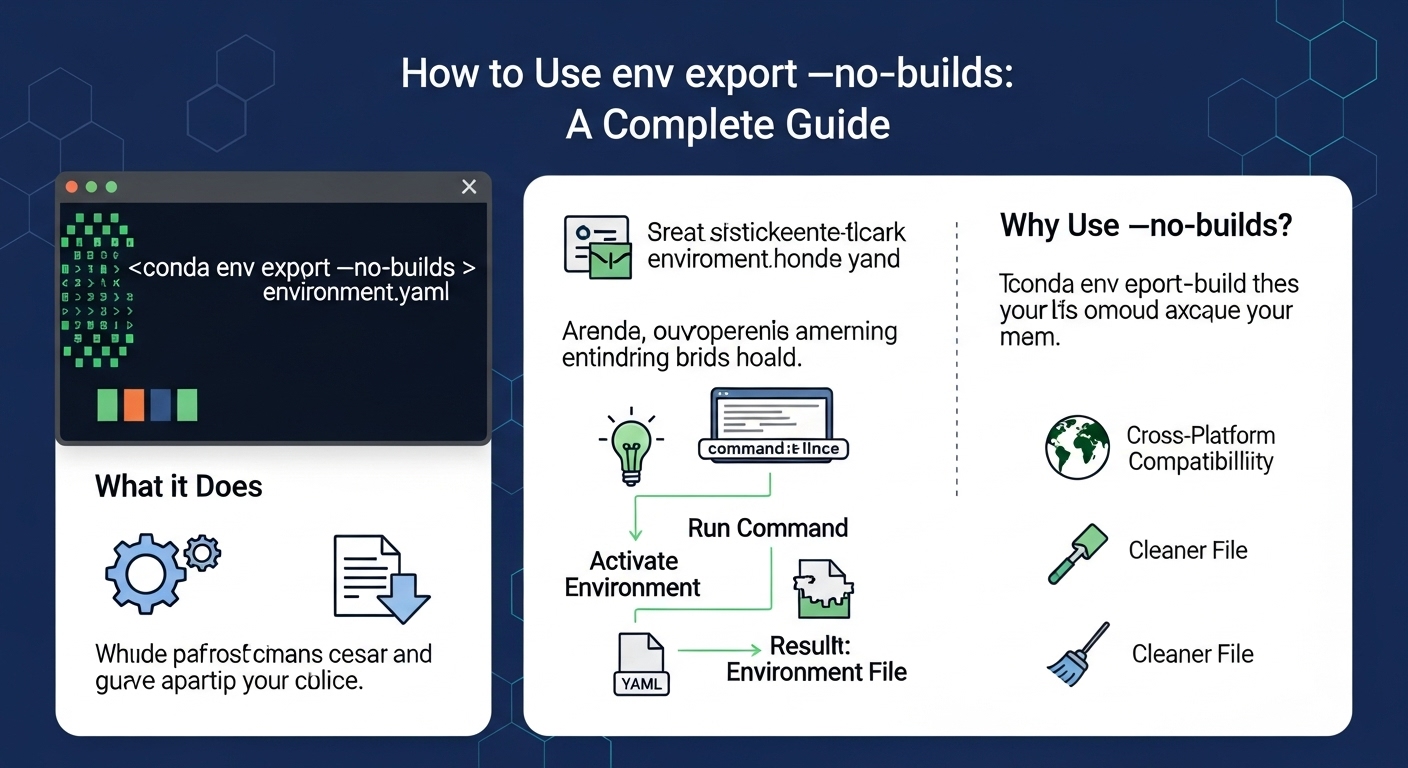
How to Use Conda env export --no-builds: A Complete Guide
11/24/2025 • Admin
How to Use Conda `env export --no-builds`: A Complete Guide
When managing Conda environments, you may often need to share or backup your environment configuration. The typical way to export a Conda environment is by using the conda env export command, which includes all package versions and builds. However, there are situations where you might not want to include build information, especially when sharing environments across different systems or when the exact build is irrelevant to your setup. This is where the --no-builds flag comes in.
What Does `conda env export --no-builds` Do?
The conda env export --no-builds command allows you to export your environment configuration without including the build information for each package. Normally, when you export an environment using conda env export, the environment YAML file includes both the package version and build specification (e.g., numpy=1.19.2=py38h7e9f1f2_0). While this is useful for replicating the exact environment, it may cause issues if the build is specific to your platform or system and not necessary for others.
By using the --no-builds option, you export the environment with just the package names and versions, without any build-specific details, making the environment file more portable and versatile across different systems.
Why Use the `--no-builds` Flag?
There are several reasons why you might prefer to use the --no-builds flag when exporting a Conda environment:
- Portability: Without the build-specific details, the environment YAML file is less platform-dependent, which is especially useful when sharing environments with team members or across systems with different configurations.
- Simplified Environment Recreation: Sometimes, the build version is not critical for the functionality of the environment. In such cases, omitting the build information makes it easier for others to recreate the environment without worrying about compatibility issues.
- Reduce YAML File Size: Excluding build information can make the exported YAML file smaller and cleaner, especially when dealing with large environments.
- Fixing Build Conflicts: If your environment export includes conflicting build versions that aren’t necessary for your project, removing the build information can avoid potential issues when recreating the environment elsewhere.
How to Export Conda Environment Without Builds
To export a Conda environment without including build information, follow these simple steps:
Step 1: Activate the Environment
Before exporting your environment, make sure it is activated. You can activate your Conda environment with the following command:
conda activate Replace <env_name> with the name of the environment you want to export. For example, if your environment is called data_science_env, you would run:
conda activate data_science_envStep 2: Export the Environment with the `--no-builds` Flag
Once the environment is activated, you can export it using the --no-builds flag:
conda env export --name --no-builds > environment.yml This command will generate a environment.yml file that includes only the package names and versions, without the build information. The file will be saved in your current directory.
Step 3: Verify the Exported YAML File
After exporting the environment, open the environment.yml file in a text editor (such as VS Code or Notepad) to ensure the content looks correct. A typical environment.yml file without build information will look like this:
name: data_science_env
channels:
- defaults
dependencies:
- numpy=1.19.2
- pandas=1.1.3
- scikit-learn=0.23.2
- python=3.8
- pip:
- jupyterlab==2.2.9
Notice that the build information (e.g., py38h7e9f1f2_0) is omitted, leaving only the package names and versions.
Recreating an Environment from the Exported YAML File
Once you’ve exported your Conda environment without build details, you can share or use the YAML file to recreate the environment on another system. To do this, simply run:
conda env create -f environment.ymlThis command will recreate the environment based on the environment.yml file, using the specified package names and versions, but without any build-specific details.
When to Use `conda env export --no-builds`?
The --no-builds flag is useful in the following scenarios:
- Sharing Environments Across Platforms: When you need to share your environment with someone using a different platform (e.g., Windows, macOS, Linux), removing the build details makes it easier for them to set up the environment without conflicts.
- Creating Lightweight Backups: If you want a clean backup of your environment without the extra build data, using
--no-buildswill help you achieve this. - Fixing Build Issues: If the environment export includes incompatible or unnecessary build information, omitting this data can avoid potential errors when recreating the environment on another system.
Best Practices for Exporting Conda Environments
Here are some best practices to follow when exporting Conda environments:
- Use Descriptive Environment Names: Give your environments clear names to make them easy to identify when exporting and sharing them.
- Check for Compatibility: Before exporting, ensure that all necessary packages are included and up to date. This prevents missing dependencies when recreating the environment.
- Use Version Control: Consider version-controlling your
environment.ymlfile if you’re working in a team or across multiple systems. - Test the Export: After exporting, test the YAML file by recreating the environment to make sure it works correctly.
Summary
Using the conda env export --no-builds command is a great way to export your Conda environment without the build specifications, making it more portable and compatible across different platforms. This method helps create clean, platform-independent environment files that can be shared and used with minimal issues. Whether you’re backing up your environment, sharing it with colleagues, or migrating it to another system, this command is an excellent tool for ensuring reproducibility and portability.
If you need additional tools for managing your environments and files, check out these FormatPilot tools:
- FormatPilot Convert: Convert and clean your files easily.
- FormatPilot File Tools: A comprehensive collection of tools for managing and cleaning up your files.
- FormatPilot Text Tools: Quickly clean and organize your text data.
FAQs
What is the `--no-builds` flag in Conda export?
The `--no-builds` flag exports a Conda environment without including build specifications, making it more portable and easier to use across different systems.
How do I export a Conda environment without the build information?
Use the command conda env export --name to export your environment without build details.
Can I use a Conda environment exported with `--no-builds` on any system?
Yes, by removing build information, the environment YAML file becomes more platform-independent, making it easier to recreate the environment on different systems.
How do I recreate an environment from the exported YAML file?
Use the command conda env create -f environment.yml to recreate the environment from the exported YAML file.
When should I use `conda env export --no-builds`?
Use this flag when sharing environments across platforms or when you want to create a lightweight environment backup without build-specific details.