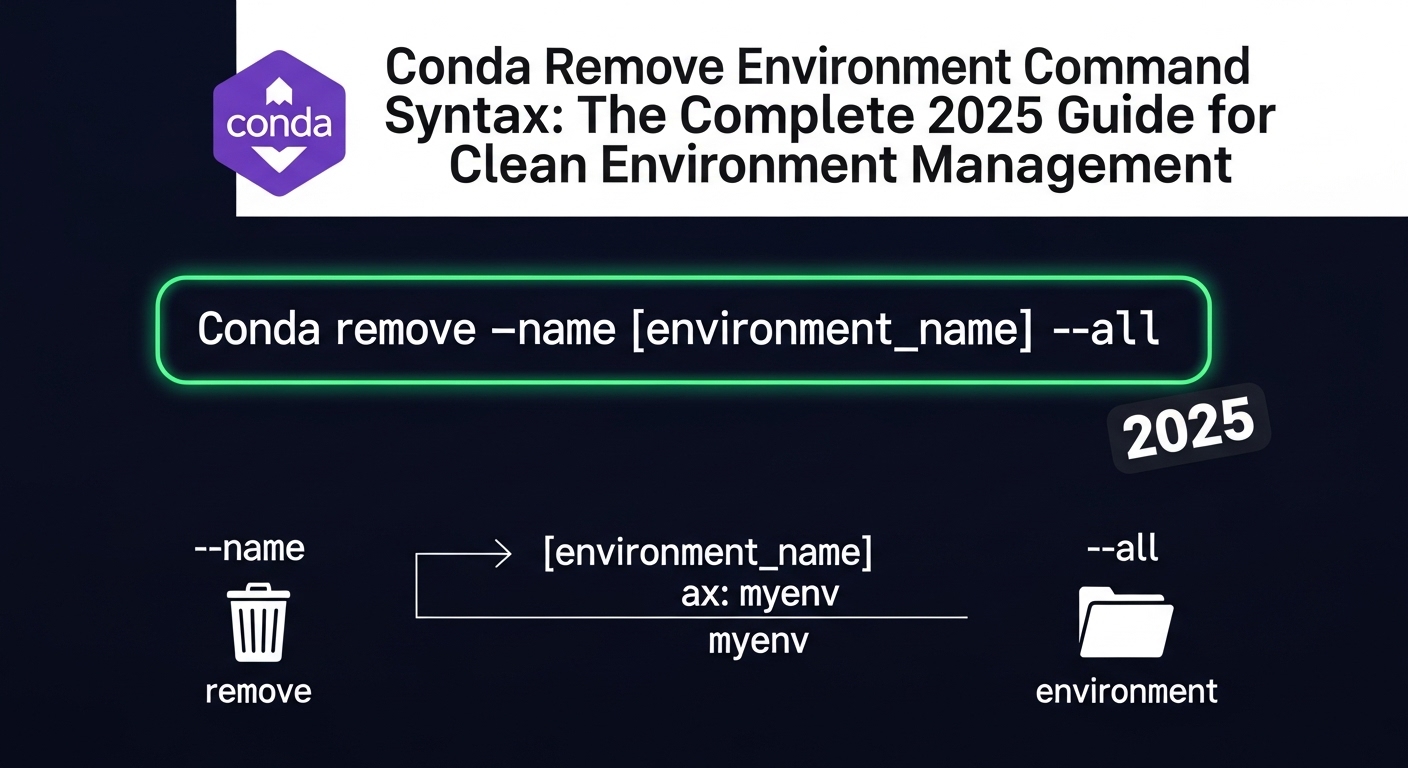
Conda Remove Environment Command Syntax: The Complete 2025 Guide for Clean Environment Management
11/16/2025 • Admin
Conda Remove Environment Command Syntax: The Complete 2025 Guide
Working with Conda is usually smooth and predictable, but sooner or later every Python developer faces the same situation. Your system ends up with a long list of environments you no longer use. Maybe a project is finished, a dependency broke, or an experiment created half a dozen virtual environments sitting idle on your machine. In those moments, the first thing you need to know is the correct conda remove environment command syntax.
This guide explains exactly how to remove, clean, list, and troubleshoot Conda environments using the correct syntax. We will walk through multiple use cases, common errors, best practices, and the safest way to delete environments without breaking your system. The goal is to help you understand how Conda actually handles environment deletion behind the scenes, so you can manage your machine with confidence.
Along the way, you’ll also find helpful tools from FormatPilot that make your workflow smoother, such as converting file formats, beautifying JSON, and handling CSV or text files. You will also see direct examples referenced from authoritative sources like Stack Overflow and Google Developers.
Understanding How Conda Environments Work
Before jumping into the exact conda remove environment command syntax, it helps to understand how Conda manages environments under the hood. Each environment is basically a self-contained directory that stores its own:
- Python executable
- Packages and dependencies
- Binary files
- Configuration settings
When you create a new environment, Conda builds a separate ecosystem that never interferes with your base installation. This makes environment cleanup easy, because deleting one environment does not affect the others. However, using the wrong commands can leave partial data behind or throw errors if the environment is still active.
The Main Directory Where Conda Stores Environments
Most systems store Conda environments inside a directory called envs. Depending on your installation, paths may differ:
- Windows:
C:\Users\YourName\miniconda3\envs - Linux:
/home/yourname/miniconda3/envs - macOS:
/Users/yourname/miniconda3/envs
Each folder inside envs represents a single environment. The goal of the conda remove environment command syntax is to safely delete these folders through Conda commands rather than removing them manually.
The Correct Conda Remove Environment Command Syntax
Let’s start with the official, safe, and recommended syntax to delete a Conda environment. The core command looks like this:
conda env remove --name your_env_nameThis is the version most developers use. It is clean, readable, and guaranteed to delete everything associated with that environment. You will see this syntax repeated across official sources, including documentation and community discussions.
Alternative Syntax Using the Short Flags
Conda also allows a shorter variation:
conda env remove -n your_env_nameBoth commands perform the exact same task. The long-form version is more readable for beginners, while the short version speeds up workflow for power users.
Using the Base Conda Command Instead of `conda env`
Older versions of Conda used this pattern:
conda remove --name your_env_name --allThis syntax still works, but the recommended modern approach is conda env remove because it is more explicit and easier to maintain. However, understanding the older syntax helps when reading scripts, legacy projects, or Stack Overflow threads.
How to Check If an Environment Exists Before Removing
Sometimes you try removing an environment that does not exist or is misspelled. That results in common errors. Before using the conda remove environment command syntax, list your environments using:
conda env listor
conda info --envsDoing this helps identify the correct name and avoid syntax mistakes.
Example Output
# conda environments:base * /home/user/miniconda3
project1_env /home/user/miniconda3/envs/project1_env
django_test /home/user/miniconda3/envs/django_test
ml_course_env /home/user/miniconda3/envs/ml_course_env
This list makes it easy to verify the environment name before removing it.
Step-by-Step Guide to Removing Conda Environments
Step 1: Deactivate the Environment
Never delete an environment while you are inside it. Doing so leads to errors because Conda cannot remove files that are currently in use. Always run:
conda deactivateStep 2: Run the Removal Command
Use the official syntax:
conda env remove --name my_envThis removes:
- The environment folder
- Site packages
- Binaries
- Python installation for that environment
Step 3: Confirm the Deletion
List environments again:
conda env listIf the environment is gone, the removal was successful.
When to Use `--all` in Conda Remove Syntax
There are two places where --all matters:
1. Removing an entire environment
This older command still works:
conda remove -n my_env --allIt deletes all packages inside the environment, effectively removing it.
2. Cleaning unused packages
You can free disk space using:
conda clean --allThis removes cached packages and temporary files but does not delete environments. Many developers confuse these two commands.
Common Errors When Removing Conda Environments
Error 1: “Environment is currently active”
This happens when you delete an environment you're still using.
Fix:
conda deactivateError 2: Misspelled environment name
Conda won’t delete anything unless the exact name matches.
Fix: List environments:
conda env listError 3: Permissions issue
On Linux or macOS, some environments require elevated permissions.
Fix:
sudo conda env remove -n my_envError 4: Removing manually from the file system
Sometimes developers delete environment folders manually and Conda becomes unaware of the change.
Fix:
conda clean --allBest Practices for Managing Conda Environments
1. Use meaningful names
Avoid names like env1 or test_env. Use descriptive labels such as:
- ml_project_env
- django_api_env
- data_cleaning_env
2. Remove old environments regularly
Virtual environment clutter slows down Conda operations. If an environment belongs to a past experiment, remove it using the correct conda remove environment command syntax.
3. Export environments before deleting
If you may need the environment later, export it:
conda env export > backup.yml4. Document your dependencies
Use tools like:
- FormatPilot JSON Beautifier for formatting environment files
- CSV to JSON Converter if your dependency lists need restructuring
- Text Tools for cleaning your notes or scripts
Advanced Cleanup: Removing Pip Packages Inside Conda Environments
Many environments mix Conda and pip packages. Removing pip-only environments requires additional cleanup, but Conda handles this when you use the right syntax:
conda env remove -n your_env_nameThis command deletes everything inside the environment, including pip dependencies.
How to Remove an Environment by Path Instead of Name
Sometimes an environment may not appear in your environment list. In that case, remove it using a path-based command:
conda env remove --prefix /path/to/envExample:
conda env remove --prefix /home/user/miniconda3/envs/my_envHow to Remove the Base Conda Installation
This is rare but sometimes needed. You cannot remove the base environment using traditional syntax. Instead, you must uninstall Conda completely. Refer to the official documentation for OS-specific instructions.
Using FormatPilot Tools While Working With Conda
Many developers working with Conda also deal with configuration files, dataset conversions, or log formatting. FormatPilot helps with tasks like:
- File conversions for data science projects
- Beautifying JSON exported from environments
- CSV to JSON transformations for datasets
- Text cleanup utilities for code snippets or documentation
These tools streamline your Python workflow, especially when creating or deleting environments repeatedly.
Final Thoughts
Understanding the correct conda remove environment command syntax is essential for keeping your Python setup clean, organized, and efficient. Whether you're a data scientist, machine learning engineer, backend developer, or researcher, knowing how to properly create and delete Conda environments will save you disk space, prevent dependency conflicts, and speed up your daily work.
If you want to simplify related tasks such as JSON formatting, CSV conversion, or text processing, explore all the free tools available on FormatPilot.com. They fit naturally into a modern development workflow and help you stay productive.
FAQs
1. What is the correct conda remove environment command syntax?
The correct syntax is: conda env remove --name your_env_name. This safely deletes the environment and all related packages.
2. Can I delete a Conda environment while it is active?
No, you must deactivate it first. Run conda deactivate, then use the official conda remove environment command syntax.
3. How can I remove a Conda environment that doesn’t appear in the list?
You can remove it by path using: conda env remove --prefix /path/to/env.
4. What is the difference between conda remove and conda env remove?
conda env remove is the modern approach. conda remove --all is older but still works. Both handle environment deletion.
5. Does conda clean --all delete environments?
No. conda clean --all only removes cached files. To delete an environment, use the correct conda remove environment command syntax.
6. Can I recover a deleted Conda environment?
Not directly. Always export the environment first using conda env export > backup.yml before deletion.