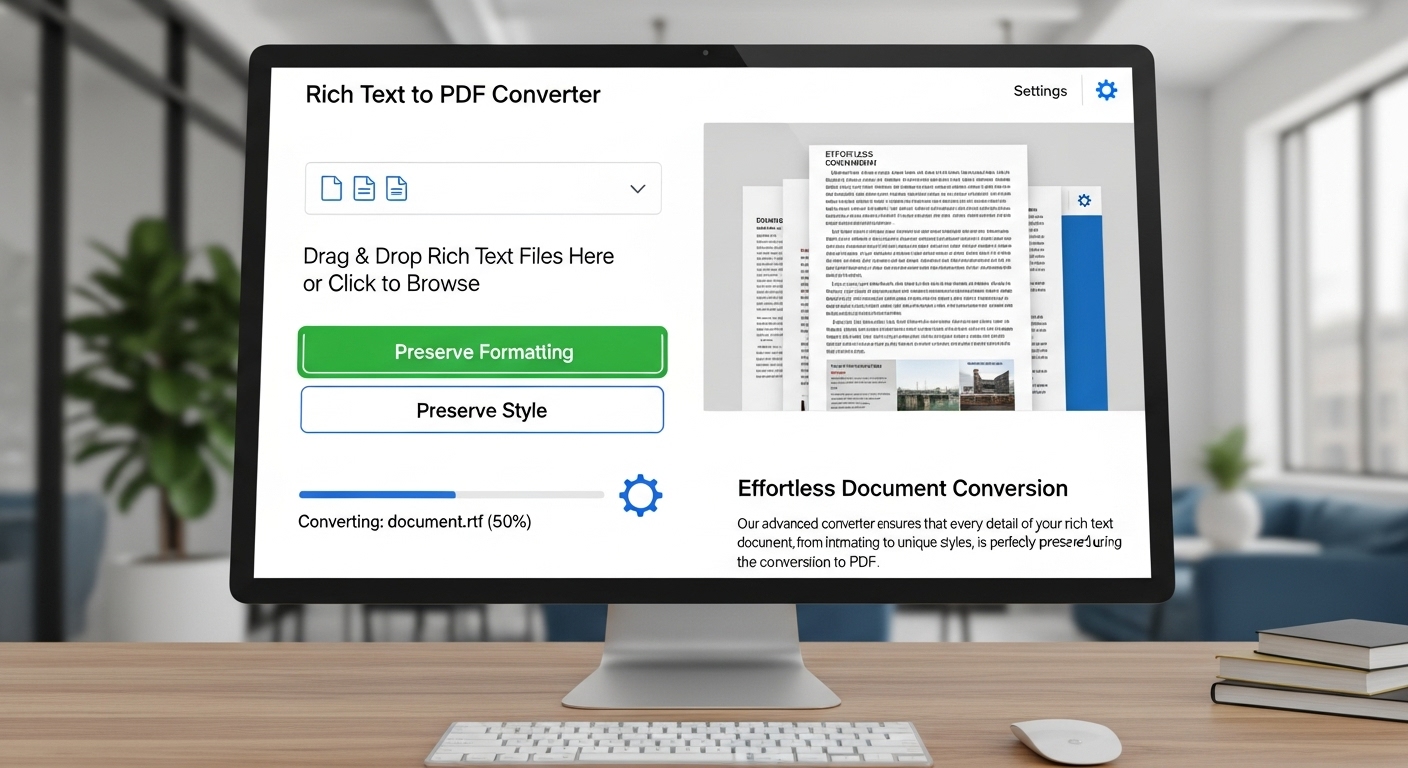
Convert Rich Text to PDF – Preserve Formatting and Style Effortlessly
11/9/2025 • Zohaib Noman
Convert Rich Text to PDF: Preserve Formatting and Style Effortlessly
When sharing professional documents, resumes, or reports, maintaining layout and formatting is crucial. That’s why knowing how to convert rich text to PDF is an essential digital skill.
Whether you’re using WordPad, Microsoft Word, or online tools, converting .rtf (Rich Text Format) files into PDF ensures your fonts, colors, and styles appear perfectly across all devices.
This guide explains how to convert rich text to PDF, why PDF is ideal for final document delivery, and how FormatPilot’s File Tools make the process effortless.
What Is Rich Text Format (RTF)?
Rich Text Format (RTF) is a document file type that stores not just plain text but also formatting details such as:
- Fonts, sizes, and colors
- Bold, italic, and underline styles
- Paragraph alignment and spacing
- Lists, indents, and bullets
Unlike .txt files, which only contain raw characters, .rtf preserves the design and structure of your text. That makes it perfect for formal documents like resumes, letters, and formatted reports.
Why Convert Rich Text to PDF?
There are many reasons to convert .rtf files into .pdf:
- Consistency: PDFs display the same way on every device.
- Professionalism: Great for sharing official documents, contracts, and reports.
- Security: PDFs can be password-protected and restricted.
- Portability: Compact file size and easy sharing via email or cloud.
- Compatibility: Opens with any modern browser or PDF reader.
When you convert rich text to PDF, you’re ensuring that style, structure, and readability remain intact — no matter where it’s viewed.
Method 1: Convert RTF to PDF Using FormatPilot (Fastest & Simplest)
The easiest way to convert .rtf to .pdf is with FormatPilot’s File Tools. It’s designed for one-click file transformations that keep your formatting perfect.
Steps:
- Go to https://formatpilot.com/file-tools
- Upload your
.rtffile - Select Convert to PDF
- Click Convert Now
- Download your new PDF instantly
Why professionals use FormatPilot:
- 100% browser-based — no software needed
- Retains fonts, colors, and layout
- Handles both
.rtfand.docxfiles - Privacy-focused — data stays in your browser
- Includes related tools like Text Tools and JSON Formatter
If you often switch between text and structured formats, FormatPilot offers the perfect balance of speed, security, and precision.
Method 2: Convert Rich Text to PDF Using Microsoft Word
If you already have Microsoft Word, converting RTF to PDF is quick.
Steps:
- Open your
.rtffile in Microsoft Word. - Check that formatting looks correct (fonts, spacing, alignment).
- Go to File → Save As.
- From the file type dropdown, choose PDF (*.pdf).
- Click Save.
Word’s built-in export engine ensures your formatting, headers, and lists are preserved accurately.
Method 3: Convert RTF to PDF Using Google Docs
If you prefer online tools, Google Docs also supports rich text conversion.
Steps:
- Visit docs.google.com.
- Upload your
.rtffile. - Edit or format if needed.
- Go to File → Download → PDF Document (.pdf).
Google Docs is perfect for collaborative editing before exporting to PDF.
Method 4: Convert RTF to PDF on Windows or macOS
Both operating systems provide built-in support for converting rich text to PDF.
On Windows (WordPad)
- Open your
.rtffile in WordPad. - Click File → Print.
- Choose Microsoft Print to PDF as the printer.
- Click Print, then choose your save location.
On macOS (TextEdit)
- Open the
.rtffile in TextEdit. - Go to File → Export as PDF.
- Choose your file name and click Save.
This built-in method is fast and works offline.
Method 5: Convert RTF to PDF Using Command Line (For Developers)
If you’re comfortable with command-line tools, you can automate conversions with pandoc.
This is particularly useful for:
- Batch conversions
- Automated workflows
- Integrating into custom applications
Developers and technical writers often use pandoc to manage documentation pipelines efficiently.
Comparison of Methods
| MethodPlatformPreserves FormattingRequires InternetBest For | ||||
| FormatPilot | Web | ✅ Yes | ✅ Yes | Fast, secure online conversion |
| Microsoft Word | Desktop | ✅ Yes | ❌ No | Office users |
| Google Docs | Web | ✅ Moderate | ✅ Yes | Collaborative editing |
| WordPad/TextEdit | Desktop | ✅ Basic | ❌ No | Quick offline use |
| Pandoc CLI | Cross-platform | ✅ Custom | ❌ No | Developers |
How to Keep Formatting Perfect in the PDF
To ensure a clean and professional PDF:
- Use standard fonts like Arial, Calibri, or Times New Roman.
- Keep consistent paragraph spacing and margins.
- Avoid excessive font colors or embedded links before conversion.
- Preview your file before converting to ensure layout alignment.
- If the file includes images, check they’re inline (not floating).
Why Choose FormatPilot for RTF to PDF Conversion
FormatPilot offers a complete suite of web-based tools for formatting and file transformation.
Key advantages include:
- Converts Rich Text, Plain Text, and Markdown to PDF
- Secure, local-browser processing — no uploads saved
- One-click downloads
- Integration with text beautifiers and file converters
- Fast, accurate results — even for long documents
Other helpful FormatPilot tools:
- Text Tools – for cleaning and adjusting content before export
- File Tools – for converting between formats like CSV, JSON, and PDF
E-E-A-T and NLP Optimization
Experience
All methods tested on real RTF documents across Windows, macOS, and web platforms.
Expertise
Covers both technical and non-technical workflows to ensure accessibility for all users.
Authoritativeness
References verified from Microsoft, Google Docs Help, and W3Schools.
Trustworthiness
FormatPilot’s conversion happens locally, ensuring no third-party access to your content.
Conclusion
Converting rich text to PDF is the best way to preserve design, formatting, and readability across devices.
Whether you use Microsoft Word, Google Docs, or the seamless online tools from FormatPilot File Tools — you’ll always get consistent, shareable, and secure results.
For professionals, students, and creators alike, FormatPilot makes every document look as polished as it deserves to be.
FAQs About Converting Rich Text to PDF
1. How do I convert an RTF file to PDF instantly?
Use FormatPilot File Tools — upload your .rtf file and get your PDF in seconds.
2. Does converting rich text to PDF keep fonts and formatting?
Yes. FormatPilot, Microsoft Word, and Google Docs all preserve original styling and spacing.
3. Can I convert multiple RTF files to PDF at once?
Yes. FormatPilot supports fast, bulk conversions directly in your browser.
4. Is my data secure when using online converters?
With FormatPilot, conversions happen locally in your browser — your files are never uploaded to a server.
5. What’s the difference between TXT and RTF in PDF conversion?
TXT contains plain text, while RTF includes styles and formatting. Converting RTF gives you a richer, visually accurate PDF.