How to Convert Lowercase to Uppercase in Excel: A Step-by-Step Guide
11/26/2025 • Admin
How to Convert Lowercase to Uppercase in Excel: A Step-by-Step Guide
Excel is one of the most powerful tools for working with text data, and one of the most common tasks you may need to do is convert lowercase text to uppercase. Whether you're cleaning up data or formatting text for consistency, converting case in Excel is a simple yet crucial skill. In this guide, we’ll walk you through the process of converting lowercase to uppercase in Excel using various methods.
Why Convert Lowercase to Uppercase in Excel?
Converting text to uppercase in Excel can help with a variety of tasks, such as:
- Standardizing data: Ensure all text follows the same case formatting.
- Improving readability: Make important text stand out or highlight specific terms.
- Data cleaning: Convert inconsistent case formatting into a uniform style for easier processing.
Now, let’s explore different ways to convert lowercase to uppercase in Excel.
Method 1: Using the UPPER Function
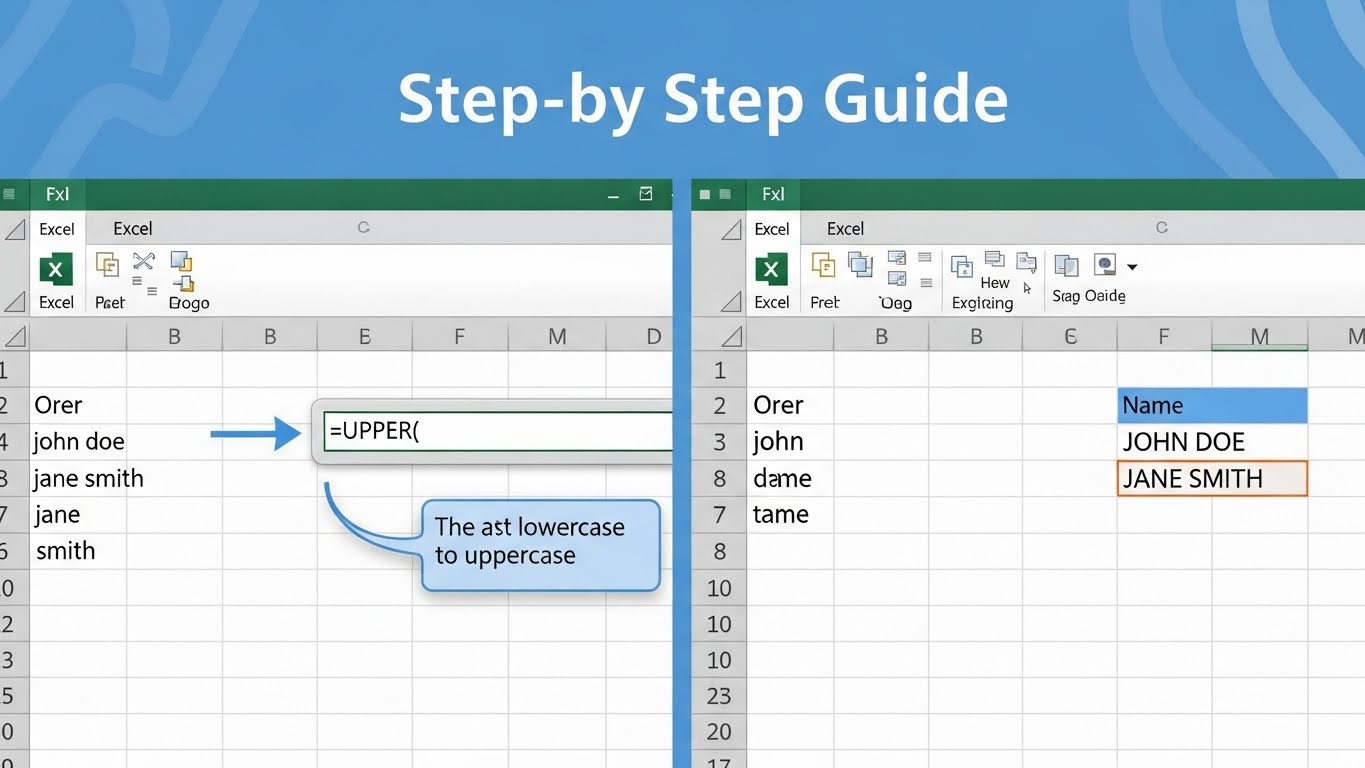
Excel offers a built-in function called UPPER, which is the most straightforward way to convert lowercase to uppercase. This method is perfect for those who prefer working with formulas.
How to Use the UPPER Function
- Step 1: Select the cell where you want the uppercase text to appear.
- Step 2: Type the following formula into the selected cell:
=UPPER(A1). Here,A1is the cell containing the lowercase text. - Step 3: Press
Enter, and the text will automatically convert to uppercase.
For example, if cell A1 contains “hello world,” the formula =UPPER(A1) will return “HELLO WORLD” in the cell where you applied the formula.
Method 2: Using Flash Fill
Flash Fill is a powerful feature in Excel that automatically fills in values based on patterns. It’s a quick and easy way to convert lowercase to uppercase without using formulas.
How to Use Flash Fill for Uppercase Conversion
- Step 1: In the cell next to the lowercase text, manually type the text in uppercase (e.g., if A1 is “hello,” type “HELLO” in B1).
- Step 2: Press
Enter, then start typing the next value in uppercase in the next cell. Excel will automatically detect the pattern and suggest the rest of the uppercase text. - Step 3: Press
Enteragain to accept the Flash Fill suggestion and convert the entire column to uppercase.
Flash Fill is especially helpful when you need to quickly convert a small to medium set of data without formulas or advanced functions.
Method 3: Using Power Query
For large datasets, Power Query offers a more efficient method for converting lowercase text to uppercase. Power Query is ideal when dealing with extensive data cleaning tasks in Excel.
Steps to Use Power Query for Uppercase Conversion
- Step 1: Highlight the column you want to transform in Excel.
- Step 2: Go to the “Data” tab in the ribbon, then click on “From Table/Range” to open Power Query.
- Step 3: In the Power Query editor, select the column with the lowercase text.
- Step 4: In the “Transform” tab, click on the “Format” dropdown, and then select “Uppercase.”
- Step 5: Click “Close & Load” to return the converted data to Excel.
Power Query is a great tool when you need to apply transformations to entire datasets and ensure all text is consistently formatted.
Additional Tips for Working with Text in Excel
- Changing Case to Lowercase: If you need to convert text from uppercase to lowercase, use the
LOWERfunction in a similar way to theUPPERfunction. - Proper Case: The
PROPERfunction can help convert text to proper case, where the first letter of each word is capitalized.
Conclusion
Converting lowercase text to uppercase in Excel is a simple task, and with the methods outlined in this guide, you can quickly standardize your text data and improve your Excel workflows. Whether you prefer using formulas, Flash Fill, or Power Query, there’s a method to suit your needs.
For more Excel tips and tools to enhance your productivity, explore FormatPilot’s range of tools like our text converter or JSON beautifier for seamless data management.
Get Started with FormatPilot Today
Visit FormatPilot for tools that simplify data management, coding, and text formatting. Start improving your workflow now!
FAQs
How do I convert lowercase to uppercase in Excel?
You can convert lowercase to uppercase in Excel using the
UPPERfunction, or use Flash Fill for a quicker solution.Can I convert multiple cells to uppercase at once?
Yes, you can select a range of cells and apply the
UPPERfunction to convert them all to uppercase simultaneously.What is Flash Fill in Excel?
Flash Fill is a feature in Excel that automatically detects patterns in your data and suggests how to fill in the remaining cells. It’s a quick way to convert text to uppercase.
Can I use Power Query to change case in Excel?
Yes, Power Query allows you to transform text data, including converting lowercase text to uppercase, for large datasets.