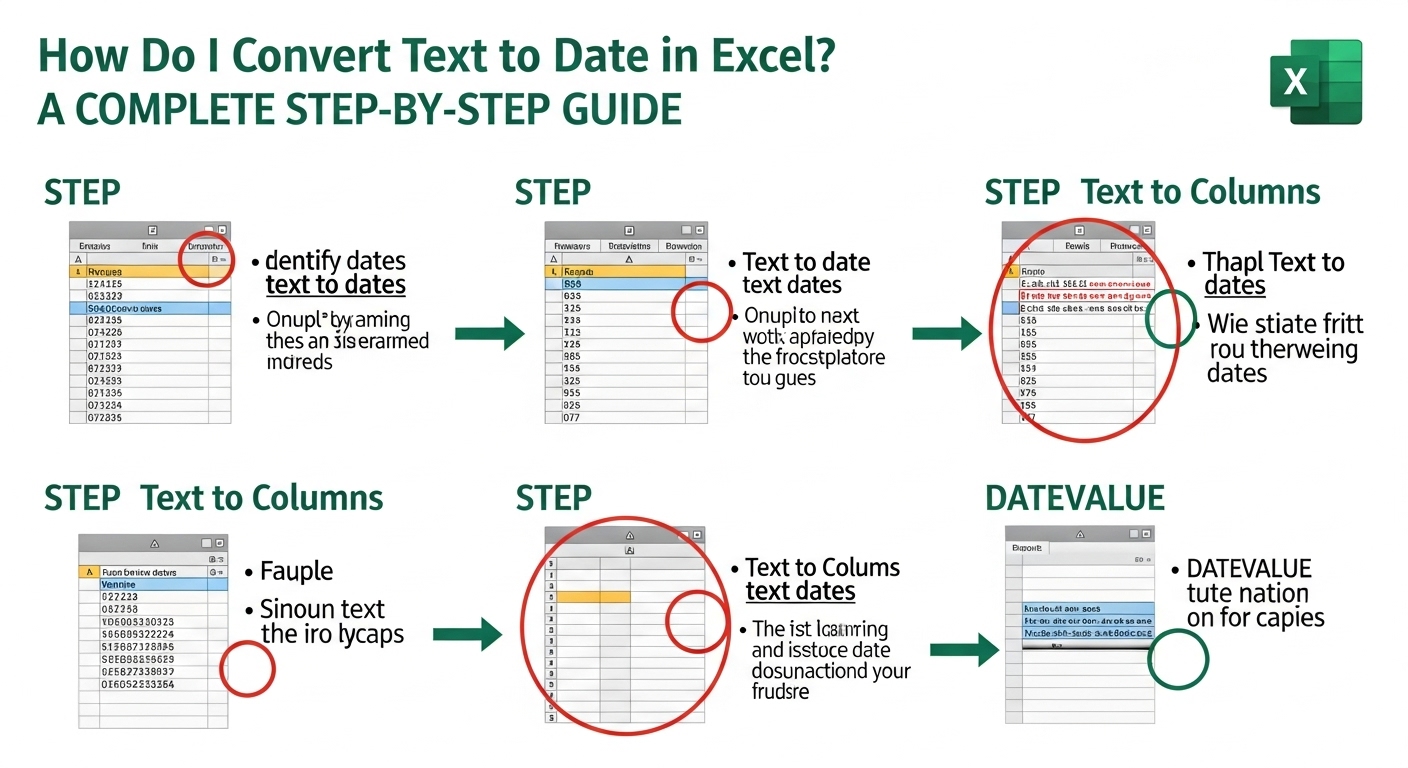
How Do I Convert Text to Date in Excel? A Complete Step-by-Step Guide
11/16/2025 • Admin
How Do I Convert Text to Date in Excel? A Complete Step-by-Step Guide
If you have ever imported data from a website, a CSV file, a database, or a system export, you have probably asked yourself at least once: “How do I convert text to date in Excel without messing everything up?”
Dates in Excel look simple on the surface, but the moment you start working with real-world data, things get messy. Some dates show up as text. Some look like dates but refuse to sort properly. Others use different formats like 2025-11-16, 16/11/2025, or even Nov 16 2025. When Excel treats them as text instead of real dates, your formulas, charts, and pivot tables stop working the way they should.
In this guide, we will walk through practical, step-by-step methods to solve that problem. By the end, you will confidently know how do I convert text to date in Excel using built-in tools, formulas, and a few smart tricks. We’ll also cover common errors, regional formats, and what to do when nothing seems to work.
Along the way, you can use tools from FormatPilot to clean your source files before even bringing them into Excel. For example, you can convert file formats, reshape CSV data to JSON, or use text tools to tidy date strings so Excel recognizes them more easily.
Why Excel Treats Some Dates as Text
Before we dive into “how do I convert text to date in Excel,” it helps to understand why this happens in the first place.
Excel stores true dates as serial numbers. For example:
- 1 January 1900 is stored as
1 - 2 January 1900 is stored as
2 - 16 November 2025 is stored as a much larger number, but still just a number
When a cell is formatted as a date and contains one of these serial numbers, Excel displays it as a date. But when a value is imported as a plain string, Excel keeps it as text. You can usually tell because:
- The value aligns to the left (by default, text is left-aligned, numbers are right-aligned)
- You cannot perform date arithmetic on it
- Sorting gives strange results
That is why learning exactly how do I convert text to date in Excel becomes such an important skill, especially if you work with external data sources.
Quick Test: Is It Really Text or a Date?
Here’s a quick way to check whether a cell contains a real date or text:
- Select the cell that looks like a date.
- Change its format to General (Ctrl+1 → Number tab → General).
If the value turns into a number (for example, 45502), it is a real date. If it stays as 2025-11-16 or 16/11/2025, Excel is treating it as text. For those text values, we now need to apply one of the conversion methods below.
Method 1: Using Text to Columns to Convert Text to Date
One of the most powerful built-in tools for this is Text to Columns. Many users think it is only for splitting text, but it is also great for converting text dates into real Excel dates.
Step-by-Step: How Do I Convert Text to Date in Excel with Text to Columns?
- Select the column that contains your text dates.
- Go to the Data tab.
- Click Text to Columns.
- Choose Delimited (even if there are no delimiters), then click Next.
- Click Next again to skip delimiters if not needed.
- In Step 3 of the wizard, look for Column data format.
- Select Date and choose the format that matches your text (for example, DMY, MDY, or YMD).
- Click Finish.
Excel will convert each text date into a real date serial, using the format you specified. If your data is consistent, this is one of the fastest answers to the question, “how do I convert text to date in Excel?”
Method 2: Using DATEVALUE to Convert Text to Date
Sometimes your data does not match one of the standard formats or you prefer using formulas for flexibility. In that case, DATEVALUE is your friend.
Basic DATEVALUE Example
Assume cell A2 contains the text:
16/11/2025In another cell, type:
=DATEVALUE(A2)Then press Enter. Excel converts the text into a serial number. If the cell is formatted as a date, you will see a proper date.
You can then copy the formula down for the rest of the column. If you want to keep only the values, copy the results and paste them as values.
Handling Month Names with DATEVALUE
If your text dates look like Nov 16, 2025 or 16 Nov 2025, the DATEVALUE function often handles them directly:
=DATEVALUE("16 Nov 2025")or from a cell:
=DATEVALUE(A2)This is especially useful when you are searching for “how do I convert text to date in Excel when the date includes month names.”
Method 3: Combining LEFT, MID, RIGHT, and DATE
In some systems, dates are stored as strings in a fixed order, such as 20251116 (for 16 November 2025). Excel might not recognize this format automatically. In that case, you can manually build the date using LEFT, MID, RIGHT, and the DATE function.
Example: YYYYMMDD Format
Suppose A2 contains:
20251116You can use:
=DATE(LEFT(A2,4), MID(A2,5,2), RIGHT(A2,2))This formula extracts:
- Year:
LEFT(A2, 4)→ 2025 - Month:
MID(A2, 5, 2)→ 11 - Day:
RIGHT(A2, 2)→ 16
Then DATE stitches them together into a real Excel date. This is one of the most reliable answers when people ask how do I convert text to date in Excel for technical or system-generated formats.
Method 4: Fixing Text Dates with FIND, SUBSTITUTE, or VALUE
Things get trickier when dates are mixed with extra characters, such as:
"Date: 16-11-2025""2025/11/16 10:30""Order placed on 16/11/25"
In these cases, you may need to clean the string before converting it. Excel formulas like SUBSTITUTE, FIND, and VALUE can help isolate the actual date part.
For messy strings or large data files, sometimes it is easier to fix the source file first. You can use FormatPilot text tools to strip prefixes, replace characters, or normalize date separators before importing into Excel. That makes the “how do I convert text to date in Excel” problem much easier to solve.
Method 5: Using Power Query to Convert Text to Date
If you are working with recurring imports or larger datasets, Power Query is a powerful and modern way to convert text to dates.
Steps to Convert Text to Date with Power Query
- Select your data range and go to the Data tab.
- Choose From Table/Range to load into Power Query.
- In Power Query, select the column that contains text dates.
- From the Transform tab, select Data Type → Date.
- Confirm the conversion when prompted.
- Click Close & Load to bring the data back into Excel.
Power Query is especially useful if you keep asking “how do I convert text to date in Excel every month?” because you can simply refresh the query instead of repeating the steps manually.
Regional Settings and Date Order Problems
One of the biggest frustrations with Excel date conversion is regional date formats. For example:
- In the US, dates are usually written as MM/DD/YYYY.
- In many other regions, dates are written as DD/MM/YYYY.
So if you see 03/04/2025, is that March 4th or 3rd April? Excel may interpret it differently based on your system settings.
How to Deal with Regional Format Issues
- Use Text to Columns and explicitly choose the date format that matches your text.
- Use formulas to break the date into year, month, and day and then rebuild with DATE.
- For imported CSV files, consider opening them first in a text editor and adjusting the format.
There are many discussions on Stack Overflow about this exact issue, which shows how common the “how do I convert text to date in Excel with different locales” problem really is.
Converting Text to Date and Time Together
Sometimes your data contains both date and time, such as:
2025-11-16 10:3016/11/2025 18:45
If Excel recognizes the pattern, Text to Columns or DATEVALUE + TIMEVALUE can handle it.
Example with DATEVALUE and TIMEVALUE
Assume A2 contains:
16/11/2025 18:45You can split and convert like this:
=DATEVALUE(LEFT(A2,10)) + TIMEVALUE(RIGHT(A2,5))This formula extracts the date portion and the time portion separately, converts each, and adds them to form a complete datetime value.
Cleaning Source Files Before Importing to Excel
Sometimes, the real answer to “how do I convert text to date in Excel” starts before you ever open Excel. If your data comes from APIs, logs, or inconsistent systems, you can clean the file first:
- Use FormatPilot’s file conversion to normalize file types.
- Use CSV to JSON or vice versa to restructure data.
- Use JSON beautifier to inspect date-like fields from APIs.
- Use text tools to replace weird separators, remove extra labels, or align dates into a single consistent pattern.
By cleaning first, Excel’s built-in date conversion functions work far more reliably.
Common Mistakes When Converting Text to Date
Let’s look at a few typical mistakes people run into when they ask how do I convert text to date in Excel and why their first attempts fail.
Mistake 1: Using Only Cell Formatting
Changing the format from Text to Date does not magically convert text into dates. Excel might still hold the underlying value as text. You usually need formulas, Text to Columns, or Power Query to truly convert it.
Mistake 2: Mixing Different Date Formats in the Same Column
If your column has both 2025-11-16 and 16/11/25 and month names like Nov 16 2025, a single method might not handle all of them correctly. In that case, split the data into groups or standardize them beforehand.
Mistake 3: Forgetting About Hidden Characters
Some text dates include hidden spaces or non-breaking spaces. A simple:
=TRIM(A2)before applying DATEVALUE can sometimes fix conversion issues.
When Should I Use Which Conversion Method?
Here’s a quick rule of thumb to answer “how do I convert text to date in Excel for my specific case?”
- Text to Columns: Best when the entire column uses the same date format and you want a quick one-time conversion.
- DATEVALUE: Great when the text is already in a recognizable date format or stored in multiple columns.
- DATE + LEFT/MID/RIGHT: Best for compact formats like
YYYYMMDDor custom strings. - Power Query: Ideal for recurring imports and large datasets.
- TRIM/SUBSTITUTE: Helpful when dates include extra text or spaces.
The more you practice, the more naturally you will know which approach to choose for each new dataset.
Final Thoughts: Mastering Text to Date Conversion in Excel
If you have reached this point, you now have a practical answer to the question “how do I convert text to date in Excel?” You have seen:
- How Excel stores dates internally
- How to use Text to Columns for quick conversion
- How to apply DATEVALUE, DATE, and TIMEVALUE with formulas
- How to handle tricky formats, regional issues, and date+time strings
- How to clean your source files before they ever reach Excel
Once you master these techniques, sorting, filtering, and analyzing your data becomes much easier. Charts make sense, pivot tables behave, and your reports look professional instead of broken.
If you often work with CSVs, logs, API responses, or mixed-format data, pair your Excel skills with FormatPilot’s tools. You can convert files, reshape CSVs, inspect JSON date fields, and clean your text with smart text tools before opening anything in Excel.
To streamline your entire workflow around dates, data, and formats, explore everything available at FormatPilot.com.
FAQs
1. How do I convert text to date in Excel using a simple built-in tool?
The quickest way is to use Text to Columns. Select the column, go to the Data tab, click Text to Columns, choose Delimited, then in Step 3 select Date and choose the matching format (such as DMY or MDY). This is often the easiest way to answer how do I convert text to date in Excel for a whole column at once.
2. How do I convert text to date in Excel with a formula?
You can use the DATEVALUE function. For example, if A2 contains a text date like “16/11/2025,” you can enter =DATEVALUE(A2). Format the result as a date. This is a very direct formula-based answer to how do I convert text to date in Excel.
3. How do I convert text to date in Excel when the date is stored as YYYYMMDD?
If your cell has something like 20251116, you can build the date using =DATE(LEFT(A2,4), MID(A2,5,2), RIGHT(A2,2)). This extracts year, month, and day separately and is a reliable way to handle “compact” formats when you are wondering how do I convert text to date in Excel for system-generated strings.
4. How do I convert text to date in Excel if the dates include time as well?
You can split the text into date and time parts and use DATEVALUE and TIMEVALUE. For example, if A2 contains “16/11/2025 18:45”, you might use =DATEVALUE(LEFT(A2,10)) + TIMEVALUE(RIGHT(A2,5)). This lets you fully solve how do I convert text to date in Excel when time is attached.
5. How do I convert text to date in Excel when the format doesn’t match my region settings?
Use Text to Columns and explicitly select the correct date order (DMY, MDY, or YMD), or break the value into day, month, and year with LEFT, MID, and RIGHT, and then rebuild the date with the DATE function. This is a common regional issue behind the question of how do I convert text to date in Excel across different locales.
6. How do I convert text to date in Excel for messy or inconsistent data?
First clean the text using TRIM, SUBSTITUTE, or external tools like FormatPilot’s text utilities, then apply Text to Columns or DATEVALUE. Cleaning is often the real first step when you are trying to figure out how do I convert text to date in Excel for mixed or dirty datasets.