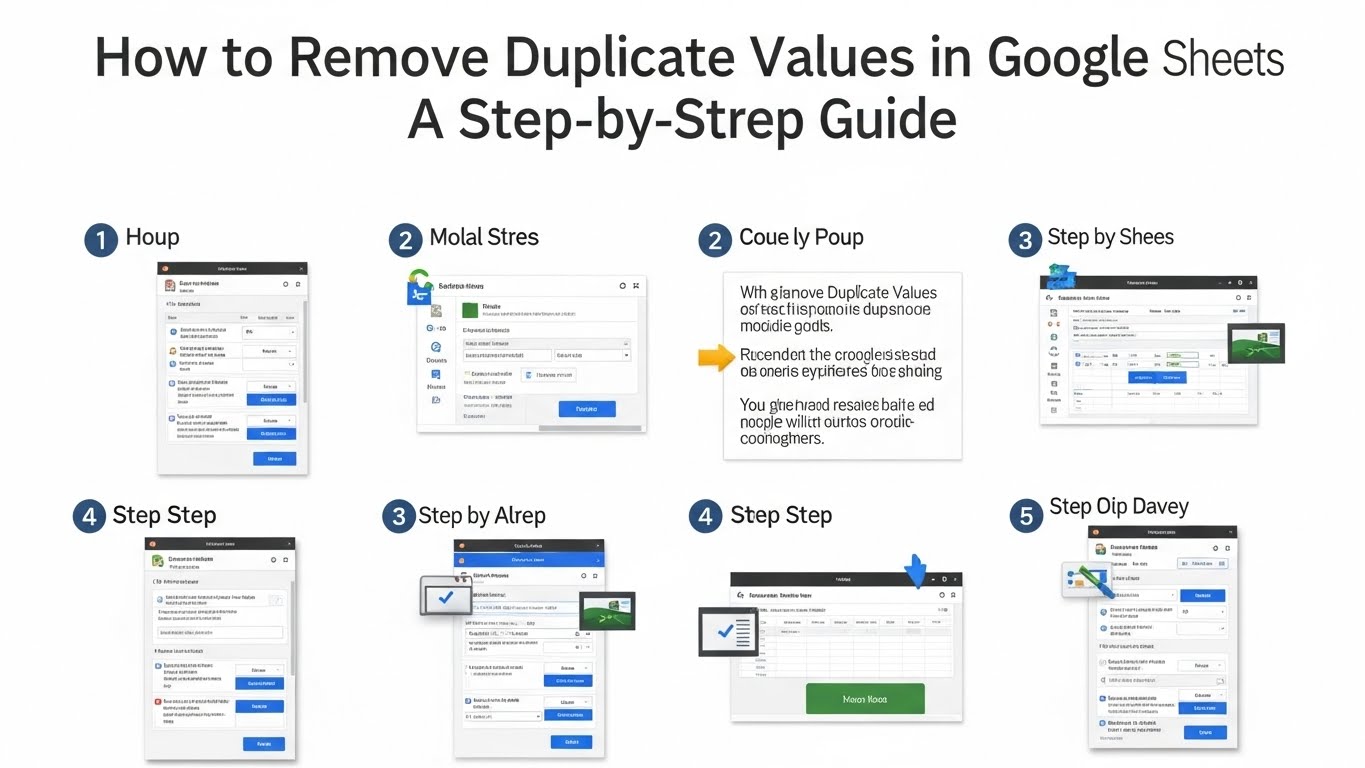
How to Remove Duplicate Values in Google Sheets: A Step-by-Step Guide
11/27/2025 • Admin
How to Remove Duplicate Values in Google Sheets: A Step-by-Step Guide
Google Sheets is a powerful tool for organizing and analyzing data, but sometimes your sheets may become cluttered with duplicate values. Duplicates can make it harder to analyze data, spot trends, or simply keep your spreadsheet organized. In this guide, we'll show you how to remove duplicate values in Google Sheets, whether you’re cleaning up a small dataset or a large spreadsheet.
Why Remove Duplicates in Google Sheets?
Duplicate values in Google Sheets can create confusion and impact the quality of your analysis. Some reasons to remove duplicates include:
- Data consistency: Having duplicate values can cause inconsistencies in your data, especially when calculating totals, averages, or other statistics.
- Improved accuracy: Removing duplicates ensures your data reflects accurate and unique values.
- Better visual clarity: Cleaner data makes it easier to read, organize, and manage your Google Sheets documents.
How to Remove Duplicates in Google Sheets: Simple Methods
Now that we understand why it's important to remove duplicates, let’s dive into the different methods you can use to do so in Google Sheets.
Method 1: Using Google Sheets’ Built-in "Remove Duplicates" Feature
Google Sheets has a built-in feature that allows you to remove duplicates with just a few clicks. This method is fast and works well for most users.
Step-by-Step Guide:
- Step 1: Open your Google Sheets document and highlight the range of cells where you want to remove duplicates. You can select the entire column or just a specific range.
- Step 2: In the menu, go to
Data > Data cleanup > Remove duplicates. - Step 3: A dialog box will appear. You can choose whether to remove duplicates based on one or more columns. By default, it will select all columns, but you can uncheck columns if needed.
- Step 4: Click
Remove duplicates. Google Sheets will show you how many duplicates were removed.
This method is perfect for quickly cleaning up data and ensuring that you only have unique values in your spreadsheet.
Method 2: Using Conditional Formatting to Highlight Duplicates
If you want to visually identify duplicates before removing them, you can use conditional formatting to highlight the duplicate values in Google Sheets.
Step-by-Step Guide:
- Step 1: Highlight the range of cells you want to check for duplicates.
- Step 2: Click on
Format > Conditional formatting. - Step 3: In the conditional formatting panel, select
Custom formula isfrom the dropdown. - Step 4: Enter the following formula:
=countif(A:A, A1)>1(adjust the column letter based on your range). - Step 5: Choose a formatting style (e.g., a color) to highlight the duplicates, then click
Done.
This method allows you to visually identify duplicates and manually decide whether you want to delete them.
Method 3: Using a Google Sheets Script to Remove Duplicates
If you prefer an automated approach, you can write a custom Google Sheets script to remove duplicates. This method is ideal for advanced users who want more control over their spreadsheet cleanup process.
Sample Script to Remove Duplicates:
function removeDuplicates() {
var sheet = SpreadsheetApp.getActiveSpreadsheet().getActiveSheet();
var range = sheet.getDataRange();
var values = range.getValues();
var uniqueValues = [];
var result = [];
for (var i = 0; i < values.length; i++) {
if (uniqueValues.indexOf(values[i][0]) === -1) {
uniqueValues.push(values[i][0]);
result.push(values[i]);
}
}
range.clearContent(); // Clears existing data
sheet.getRange(1, 1, result.length, result[0].length).setValues(result);
}
This script removes duplicate values in the first column, but you can modify it to target specific columns or ranges as needed. To use the script:
- Step 1: Click on
Extensions > Apps Script. - Step 2: Paste the script into the editor and click
Save. - Step 3: Run the function to remove duplicates automatically.
Additional Tips for Managing Duplicates in Google Sheets
- Use Filters: Filters in Google Sheets can help you isolate duplicates and manage your data more effectively before removing them.
- Sort Your Data: Sorting your data can make it easier to spot duplicates, especially when you have a large dataset.
- Check for Hidden Duplicates: Ensure there are no hidden rows or columns that contain duplicates before cleaning up your data.
Conclusion
Removing duplicates in Google Sheets is a simple yet important task for maintaining clean and accurate data. Whether you’re working with small lists or large datasets, there are several methods to remove duplicates effectively, including using built-in tools, conditional formatting, and even custom scripts for advanced users.
If you’re looking for more tools to help manage and process your data, check out other helpful resources on FormatPilot, like our text converter or JSON beautifier.
Get Started with FormatPilot Today
Visit FormatPilot for tools that simplify data management, coding, and text formatting. Start improving your workflow now!
FAQs
How do I remove duplicates in Google Sheets?
To remove duplicates, select the range of cells, go to
Data > Data cleanup > Remove duplicates, and confirm the columns you want to check.Can I remove duplicates using a script in Google Sheets?
Yes, you can write a custom Google Sheets script to remove duplicates based on specific columns or ranges.
How do I highlight duplicates in Google Sheets?
You can use conditional formatting to highlight duplicate values in Google Sheets by using the formula
=countif(A:A, A1)>1.Can I remove duplicates based on multiple columns in Google Sheets?
Yes, when using the "Remove duplicates" feature, you can select multiple columns to check for duplicates across those columns.