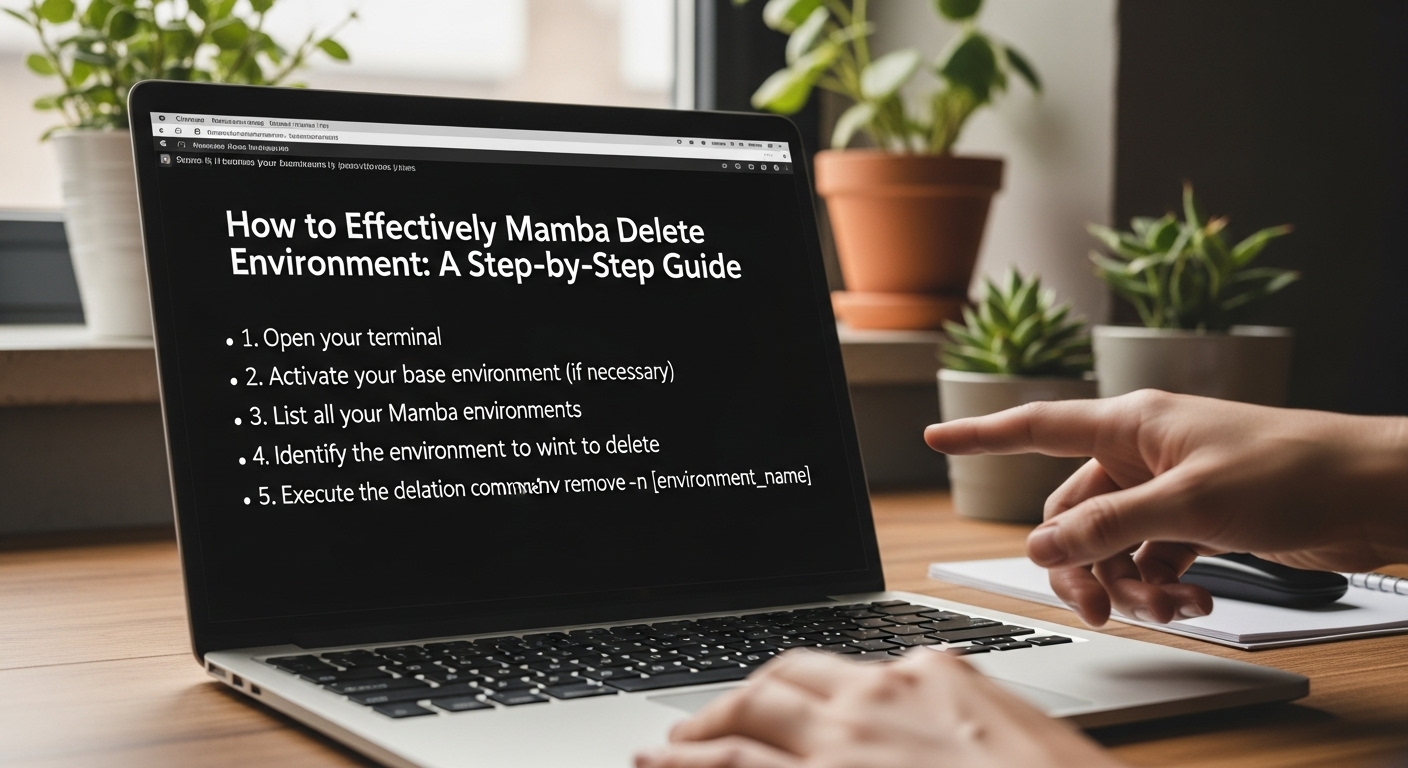
How to Effectively Mamba Delete Environment: A Step-by-Step Guide
11/23/2025 • Admin
How to Mamba Delete Environment: A Complete Guide
Managing virtual environments is one of the essential practices in the world of Python development. Whether you are working on machine learning projects, data analysis, or web development, keeping your environments organized is crucial for smooth project execution. Mamba, a faster, drop-in replacement for Conda, offers efficient ways to handle environments. In this blog, we will dive into how to mamba delete environment, the best practices for managing your environments, and when to delete an environment.
Why Use Mamba?
Mamba is an open-source package manager designed to work with Conda environments. It speeds up operations like installation, updating, and deleting environments by using parallel downloading and solving package dependencies faster. If you're using Conda, you might have already experienced its occasional slowness. Mamba solves that by providing a faster and more optimized alternative.
Before diving into the deletion process, let’s quickly understand the context in which you might need to mamba delete environment.
When to Mamba Delete an Environment?
There are several reasons why you might need to delete a Conda or Mamba environment. Some common scenarios include:
- Finished or Unused Projects: You may have finished working on a specific project, and its associated environment is no longer needed.
- Disk Space Management: Environments can consume considerable disk space. Deleting unused or unnecessary environments can free up valuable storage.
- Troubleshooting Issues: Sometimes, environments can become corrupted, or conflicts may arise between packages. Deleting and recreating an environment can resolve many issues.
- Upgrading or Switching Environments: You may want to upgrade your environment by deleting the old one and creating a new one with updated dependencies.
Once you know it's time to delete an environment, the next question is: How do you actually mamba delete environment?
Step-by-Step Guide: How to Mamba Delete Environment
Let’s walk through the process of mamba deleting environment using a simple and effective method.
Step 1: List All Environments
Before deleting an environment, it’s important to know which environments exist on your system. This helps you ensure you are deleting the right one.
mamba env listThis will show you all the environments along with their paths. The active environment will be marked with an asterisk (*).
Step 2: Deactivate the Active Environment (If Needed)
If the environment you wish to delete is currently active, you'll need to deactivate it first.
conda deactivateAlternatively, if you're working with Mamba, you can deactivate using:
mamba deactivateOnce deactivated, you can proceed with the deletion of the environment.
Step 3: Delete the Environment
To delete the environment, use the following command:
mamba env remove --name <env_name>Replace <env_name> with the name of the environment you wish to delete. For example, if your environment is called data_science_env, you would run:
mamba env remove --name data_science_envStep 4: Verify the Deletion
After the deletion process completes, it’s a good practice to verify that the environment has been successfully removed.
mamba env listIf it’s no longer there, you’ve successfully deleted the environment!
Best Practices for Managing Mamba Environments
While deleting environments is sometimes necessary, here are a few best practices for managing your Mamba environments more efficiently:
1. Use Descriptive Names for Environments
Always give your environments clear and descriptive names. For example, instead of naming an environment env1, use names like data_science_project or ml_model_v2. This will help you easily identify which environment belongs to which project.
2. Regularly Clean Up Unused Environments
Unused environments can accumulate quickly, taking up valuable storage space. Regularly cleaning up environments you no longer need is an excellent way to keep your system lean and fast.
3. Backup Important Environments
If you’ve spent a significant amount of time building an environment with specific dependencies, it’s a good idea to back it up. You can create a backup of your environment by exporting it into a YAML file:
mamba env export --name <env_name> > environment.ymlThis allows you to recreate the environment later if necessary.
4. Use Version Control for Environment Configurations
If your environments involve complex dependency setups, consider version-controlling your environment configurations (like environment.yml). This ensures you can easily replicate the setup on another system or share it with your team.
Mamba Delete Environment vs. Conda Delete Environment
You might be wondering: Is mamba delete environment different from conda delete environment? The answer is no, but the key difference lies in the speed.
Both Mamba and Conda use the same underlying commands for managing environments. The syntax and functionality are nearly identical, but Mamba performs these tasks much faster, making it more efficient for larger projects or when dealing with many environments.
Troubleshooting: What to Do If Mamba Delete Environment Doesn't Work?
If you encounter issues when trying to delete an environment, try these troubleshooting steps:
- Ensure the Environment is Not Active: Make sure the environment is deactivated before attempting to delete it.
- Check Permissions: Ensure that you have the necessary permissions to delete the environment. You may need to run commands with
sudoon Linux or macOS. - Delete the Environment Manually: If the
mamba env removecommand doesn't work, you can try deleting the environment manually by removing its folder from your file system. - Check for Active Processes: Make sure there are no running processes or applications tied to the environment before deletion.
Summary
Deleting environments in Mamba is straightforward but essential for managing your system effectively. By following the steps outlined in this guide, you can safely remove unwanted environments, free up space, and maintain a clean development setup. Remember to use descriptive names, back up critical environments, and clean up regularly.
For further optimization of your data and text management processes, be sure to check out our FormatPilot tools for converting, beautifying JSON files, and more.
FAQs
What is Mamba, and how does it differ from Conda?
Mamba is a package manager similar to Conda but optimized for speed. It uses parallel downloading and faster dependency resolution, making it a more efficient choice for handling environments.
How do I remove a Mamba environment?
To delete a Mamba environment, use the command mamba env remove --name <env_name> to safely remove the environment from your system.
Can I recover a deleted Mamba environment?
Once a Mamba environment is deleted, it cannot be recovered unless you have backed it up. To prevent data loss, always export your environment configuration to a YAML file before deleting it.
What happens if the 'mamba env remove' command fails?
If the command fails, check if the environment is active, verify your permissions, or try deleting the environment folder manually if needed.
Should I use Mamba for all Conda-based environments?
If you prioritize speed, especially when managing large environments or many packages, Mamba is an excellent choice. It's a drop-in replacement for Conda, meaning the commands and functionality are nearly identical.