How to Convert Rich Text Format (RTF) to Excel: A Step-by-Step Guide
11/24/2025 • Admin
How to Convert Rich Text Format (RTF) to Excel: A Complete Guide
Rich Text Format (RTF) files are often used for storing formatted text, but when it comes to analyzing or processing data, Excel is a much more powerful tool. Converting an RTF file to Excel can be a crucial task for users working with structured data that need to be analyzed in a spreadsheet format. In this guide, we’ll show you how to convert RTF to Excel using different methods and tools to streamline your workflow.
Why Convert RTF to Excel?
There are several reasons why you might need to convert an RTF file to Excel:
- Data Analysis: Excel provides powerful data analysis tools, including formulas, pivot tables, and charts, making it a preferred format for data processing.
- Data Organization: Converting RTF to Excel allows you to organize and manipulate your data more easily in a tabular format.
- Data Sharing: Excel files are much more shareable and compatible across different platforms, making them ideal for collaborative work and reporting.
- Text Cleanup: Converting RTF to Excel makes it easier to clean and format data by separating text into individual cells.
Methods to Convert RTF to Excel
There are several ways you can convert an RTF file to Excel, depending on the complexity of the data and the tools you prefer to use. Below, we’ll walk you through the most common methods for converting RTF to Excel:
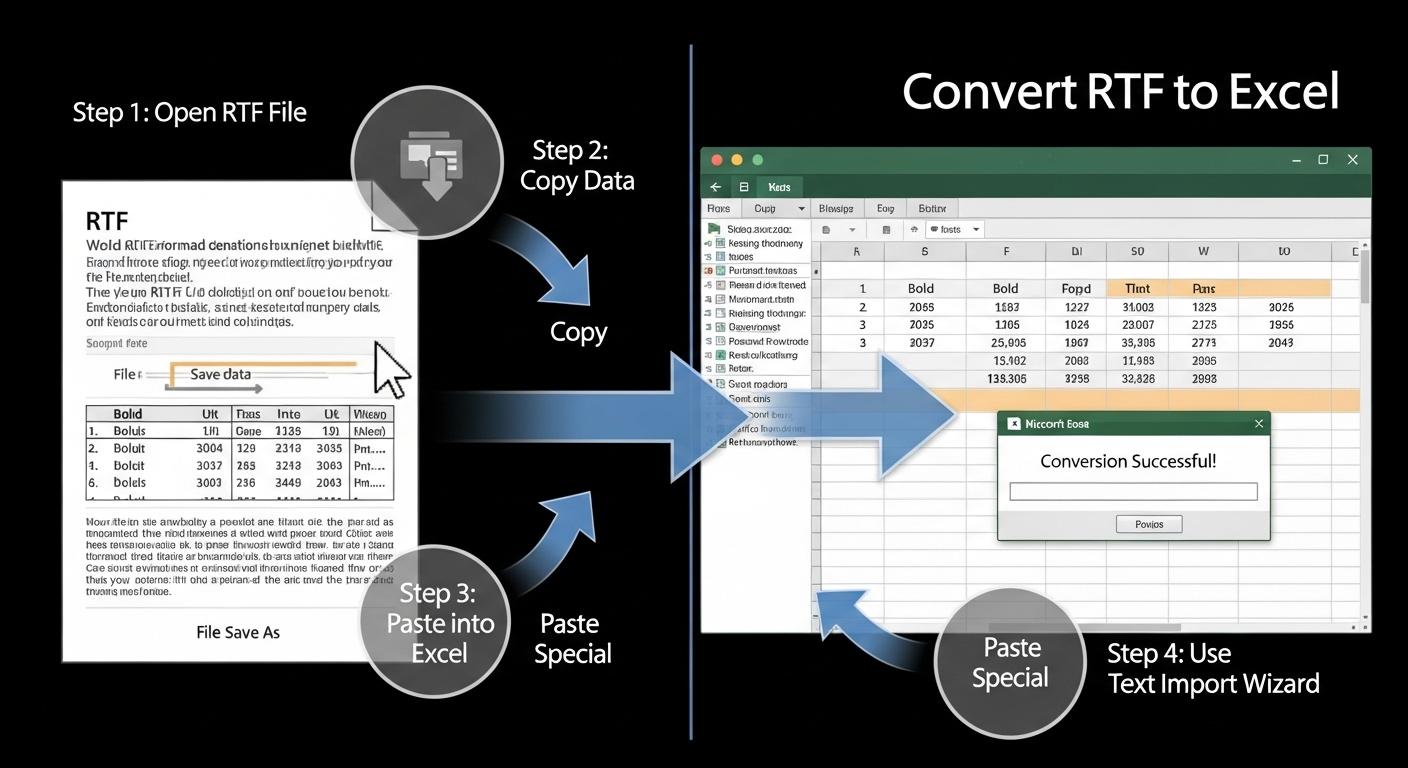
1. Copy and Paste from RTF to Excel
The simplest way to convert RTF data into Excel is to copy and paste the content directly. This method is ideal for small datasets and when you want to quickly transfer the formatted text into Excel.
- Open the RTF file in a word processor (e.g., Microsoft Word or Notepad).
- Select the data you want to copy (highlight the text).
- Copy the selected data (right-click and choose Copy or press
Ctrl + C). - Open an Excel worksheet.
- Paste the copied content into the Excel sheet (right-click and choose Paste or press
Ctrl + V).
After pasting the data, you might need to clean it up, depending on how the text is formatted. You can use Excel’s "Text to Columns" tool to split the data into individual columns based on delimiters like spaces or tabs.
2. Using Excel’s "Get Data" Feature
If your RTF file is structured in a way that’s suitable for data extraction, you can use Excel’s built-in “Get Data” feature to import it directly into Excel:
- Open Excel and go to the Data tab in the Ribbon.
- Click on Get Data > From File > From Text/CSV.
- In the dialog box that appears, navigate to the location of your RTF file and select it.
- Excel will attempt to parse the file and display the data in a preview. Choose the delimiter or separator used in your RTF file (if necessary).
- Click Load to import the data into a new worksheet in Excel.
This method works best when your RTF file is relatively simple and structured, such as tabular data with consistent delimiters like commas, tabs, or spaces.
3. Converting RTF to CSV First
Another approach is to first convert your RTF file into a CSV file and then open it in Excel. You can do this by opening the RTF file in a text editor, replacing the text delimiters (such as tabs) with commas, and then saving it as a CSV file.
- Open your RTF file in a text editor (such as Notepad or VS Code).
- Replace any tabs or spaces with commas, so the data is separated by commas. (You can also use a Find and Replace tool to do this quickly.)
- Save the file with a
.csvextension. - Open the saved CSV file in Excel, and Excel will automatically separate the data into columns.
This method works well if you have structured data that uses a consistent delimiter, such as commas or tabs. It’s ideal for converting simple lists or tables from RTF to Excel.
4. Using Online RTF to Excel Conversion Tools
If you prefer an automated solution, several online tools can convert RTF files to Excel directly. Here’s one you can use:
- FormatPilot Convert: This online tool allows you to upload your RTF file and convert it to Excel, CSV, or other formats in just a few clicks.
These online tools are convenient and don’t require any additional software installation. However, be cautious when uploading sensitive data to third-party services, and always choose a trusted tool.
5. Using Python for Advanced Users
If you’re comfortable with coding, you can use Python to automate the conversion process using libraries such as pandas and pyth. Here's a simple script to convert an RTF file into an Excel file:
import pandas as pd
from striprtf.striprtf import rtf_to_text
# Convert RTF to plain text
with open('file.rtf', 'r') as rtf_file:
rtf_text = rtf_to_text(rtf_file.read())
# Process the text and convert to Excel (you may need to adjust processing based on structure)
df = pd.DataFrame([rtf_text.split('\n')]) # Adjust split logic if needed
df.to_excel('output.xlsx', index=False)
This method is helpful when working with large RTF files or when you need to automate the process. The script first converts the RTF file to plain text and then processes it into a structured format that can be exported to Excel.
Best Practices for Converting RTF to Excel
Here are some tips to ensure your RTF-to-Excel conversion goes smoothly:
- Check the Data Structure: Before converting, ensure that the data in your RTF file is structured in a way that Excel can easily interpret (i.e., using consistent delimiters like commas, tabs, or spaces).
- Clean Up the Data: After importing the data into Excel, use tools like "Text to Columns" or "Find and Replace" to clean and format the data.
- Use the Right Tools: If your RTF file contains complex formatting, consider using a Python script or online tool to automate the process and reduce errors.
Summary
Converting RTF files to Excel allows you to organize, analyze, and visualize your data more efficiently. Whether you choose to copy and paste, use Excel’s built-in import features, or utilize Python or online tools, converting RTF to Excel makes working with text-based data more manageable. Follow the steps outlined in this guide to convert your RTF files to Excel and take advantage of Excel's powerful data analysis tools.
For more tools to manage and clean your data, check out these FormatPilot resources:
- FormatPilot Convert: Convert your RTF and text files to Excel and other formats easily.
- FormatPilot File Tools: A suite of tools for managing and cleaning files, including Excel, CSV, and JSON.
- FormatPilot Text Tools: Clean and organize your text files before converting them to Excel.
FAQs
How do I convert an RTF file to Excel?
You can convert an RTF file to Excel by copying and pasting the data into Excel, using the "Get Data" feature in Excel, or using online conversion tools like FormatPilot Convert.
Can I convert an RTF file to CSV first before importing to Excel?
Yes, you can convert the RTF file to CSV by replacing delimiters (such as tabs or spaces) with commas and saving it with a .csv extension. Then, you can open it in Excel.
What if my RTF file contains complex formatting?
If your RTF file contains complex formatting, consider using Python scripts or an online tool like FormatPilot Convert to automate the conversion process.
Can I automate the RTF to Excel conversion process?
Yes, you can automate the process using Python libraries like pandas and pyth to convert RTF to Excel programmatically.
Is there a quick online tool to convert RTF to Excel?
Yes, you can use online tools like FormatPilot Convert to convert RTF files to Excel quickly.