How to Convert TXT to Excel: A Step-by-Step Guide
11/24/2025 • Admin
How to Convert TXT to Excel: A Complete Guide
Working with TXT files is common when managing raw data, but importing that data into Excel can help you organize, analyze, and visualize it more efficiently. Whether you're working with simple tab-delimited data, comma-separated values (CSV), or more complex formatted text files, converting a TXT file to an Excel spreadsheet can make your work much easier. In this guide, we'll show you how to convert TXT to Excel step by step using various methods to suit your needs.
Why Convert TXT to Excel?
Converting TXT files to Excel provides several benefits, especially when it comes to data analysis, reporting, and organization. Here are some reasons to consider converting a TXT file to Excel:
- Data Organization: Excel allows you to organize data into rows and columns, making it easier to manage and analyze compared to a simple TXT file.
- Data Analysis: Excel offers powerful tools like formulas, charts, and pivot tables that can help you analyze your data more effectively.
- Data Visualization: Excel lets you create visualizations (e.g., graphs, pie charts) to help present your data in a more digestible format.
- Formatting and Cleanup: You can clean and format your data in Excel by removing errors, handling missing values, and applying conditional formatting to highlight trends.
How to Convert TXT to Excel
There are a few methods to convert a TXT file into an Excel spreadsheet. The method you choose depends on your specific data and needs. Let’s look at the most common approaches:
1. Using Excel’s Built-in "Import" Function
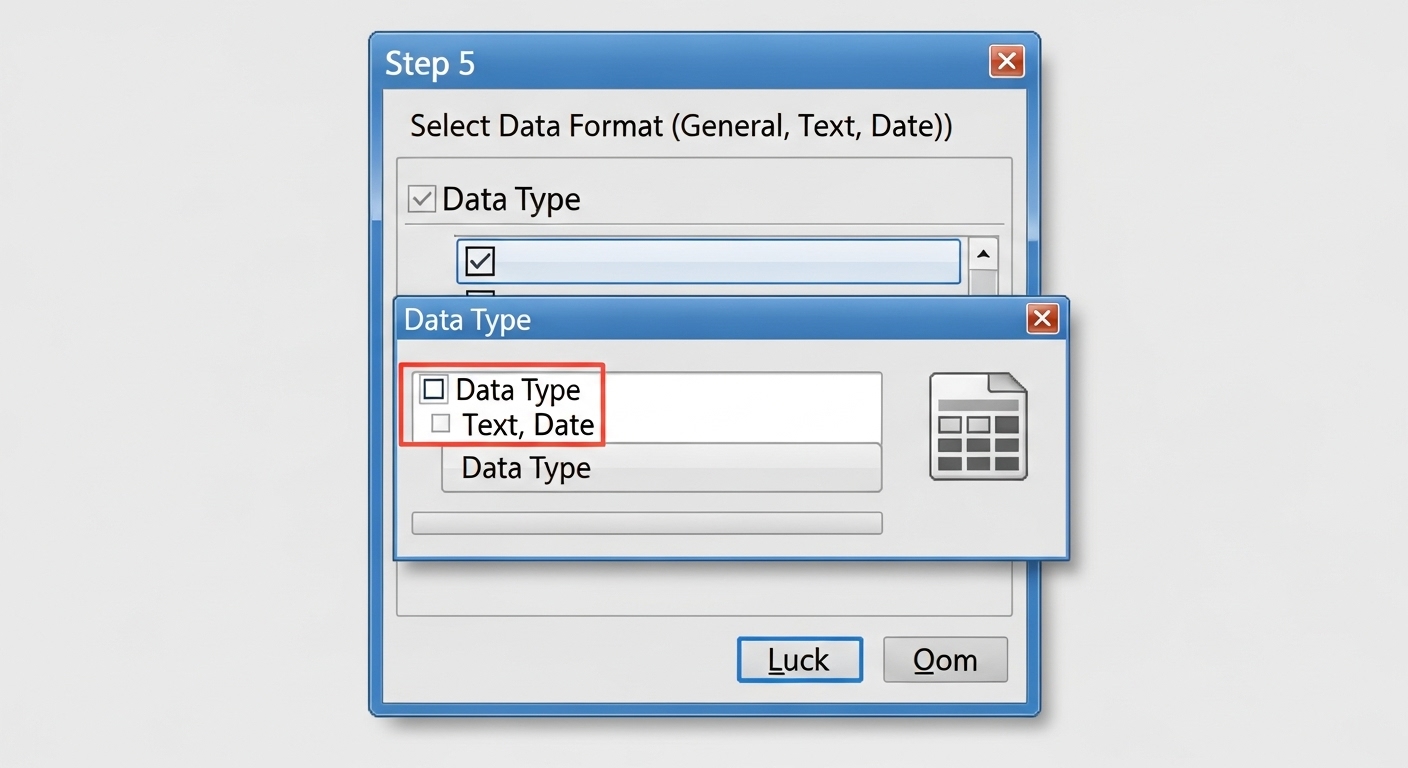
Excel makes it easy to import TXT data directly into a spreadsheet using the "Text Import Wizard" function. Follow these steps:
- Open Excel and click on the File tab.
- Click on Open, and browse to the location of your TXT file.
- Select the TXT file and click Open. The Text Import Wizard will appear.
- In the Text Import Wizard, choose the appropriate delimiter type (e.g., Tab, Comma, Space, or Custom). The wizard will preview how the data will appear in Excel.
- Click Finish, and the TXT data will be imported into a new Excel sheet, neatly organized into columns.
This method works well for most TXT files, especially those that are structured with delimiters like commas, tabs, or spaces.
2. Converting TXT to CSV First
If your TXT file uses a consistent delimiter (such as commas, tabs, or semicolons), you can convert it to a CSV file first and then import it into Excel. Here’s how:
- Open the TXT file in any text editor (like Notepad or VS Code).
- Save the file with a
.csvextension. If your file is tab-delimited, you can simply replace tabs with commas, or if it's comma-separated, save it as CSV directly. - Now, open Excel and go to the File tab.
- Click on Open, browse to the CSV file, and open it in Excel.
- Excel will automatically format the data into columns based on the commas or other delimiters used.
This method works well when dealing with simple data structures like CSV, which Excel can easily parse.
3. Using Online Conversion Tools
If you prefer a quicker, web-based solution, online tools can help you convert your TXT file to Excel in just a few steps. Here’s a tool you can use:
- FormatPilot CSV Cleaner: Use this tool to convert your TXT file to CSV and clean up any unnecessary data. You can then open the CSV file in Excel.
- FormatPilot Convert: Another useful tool that allows you to convert text and CSV files to Excel formats quickly and easily.
These online tools are easy to use and don’t require you to have Excel installed. They are ideal for quick conversions, especially when working with smaller files.
4. Using Python (For Developers)
If you’re comfortable with coding, you can use Python to automate the process of converting TXT to Excel, especially for large files or repeated tasks. Here's a simple Python script using the pandas library:
import pandas as pd
# Read the TXT file
data = pd.read_csv('yourfile.txt', delimiter='\t') # Adjust delimiter as needed
# Write to Excel file
data.to_excel('output.xlsx', index=False)
This script reads a TXT file with tab-separated data and writes it to an Excel file. You can adjust the delimiter to match your file’s structure (e.g., use commas or spaces if necessary).
Best Practices for Converting TXT to Excel
Here are some tips to keep in mind when converting a TXT file to Excel:
- Check Data Structure: Make sure your TXT file is structured in a way that Excel can easily interpret (i.e., using delimiters like commas, tabs, or spaces).
- Clean Up Data: After importing your TXT file into Excel, clean up any unwanted spaces, special characters, or formatting issues to make the data easier to work with.
- Use the Right Delimiters: Be aware of how your TXT file is delimited and make sure to select the correct delimiter during import to avoid misaligned columns.
- Save in the Right Format: After conversion, save your file in the appropriate Excel format (.xlsx) for compatibility and ease of sharing.
Summary
Converting a TXT file to Excel is a simple process that can save you time and make your data easier to analyze and visualize. Whether you use Excel’s built-in import features, an online tool, or a custom Python script, converting TXT to Excel allows you to work with your data more efficiently. Follow the steps outlined in this guide to easily convert and manage your text-based data in Excel.
For more tools to help you manage and clean your data, check out these FormatPilot resources:
- FormatPilot Convert: Convert your text and data files seamlessly into Excel and other formats.
- FormatPilot File Tools: A suite of tools to help you clean and manage your files, including Excel and CSV files.
- FormatPilot Text Tools: Quickly clean and format your text files before converting them to Excel.
FAQs
How do I convert a TXT file to Excel?
You can convert a TXT file to Excel by using Excel's built-in import function, saving the file as CSV first, or using online tools like FormatPilot Convert.
Can I convert a tab-delimited TXT file to Excel?
Yes, you can import tab-delimited TXT files into Excel by selecting the correct delimiter during the import process.
What should I do if my TXT file is not properly formatted for Excel?
You can use online tools or Python scripts to clean up the data before converting it to Excel. Also, check the delimiter to ensure the data is correctly structured.
Can I automate the TXT to Excel conversion process?
Yes, if you have coding knowledge, you can automate the process using Python scripts, like the one shown in this guide using the pandas library.
What is the best tool to convert a TXT file to Excel?
For quick conversions, FormatPilot Convert is a great tool, while Excel's built-in import features also work well for basic TXT-to-Excel conversions.