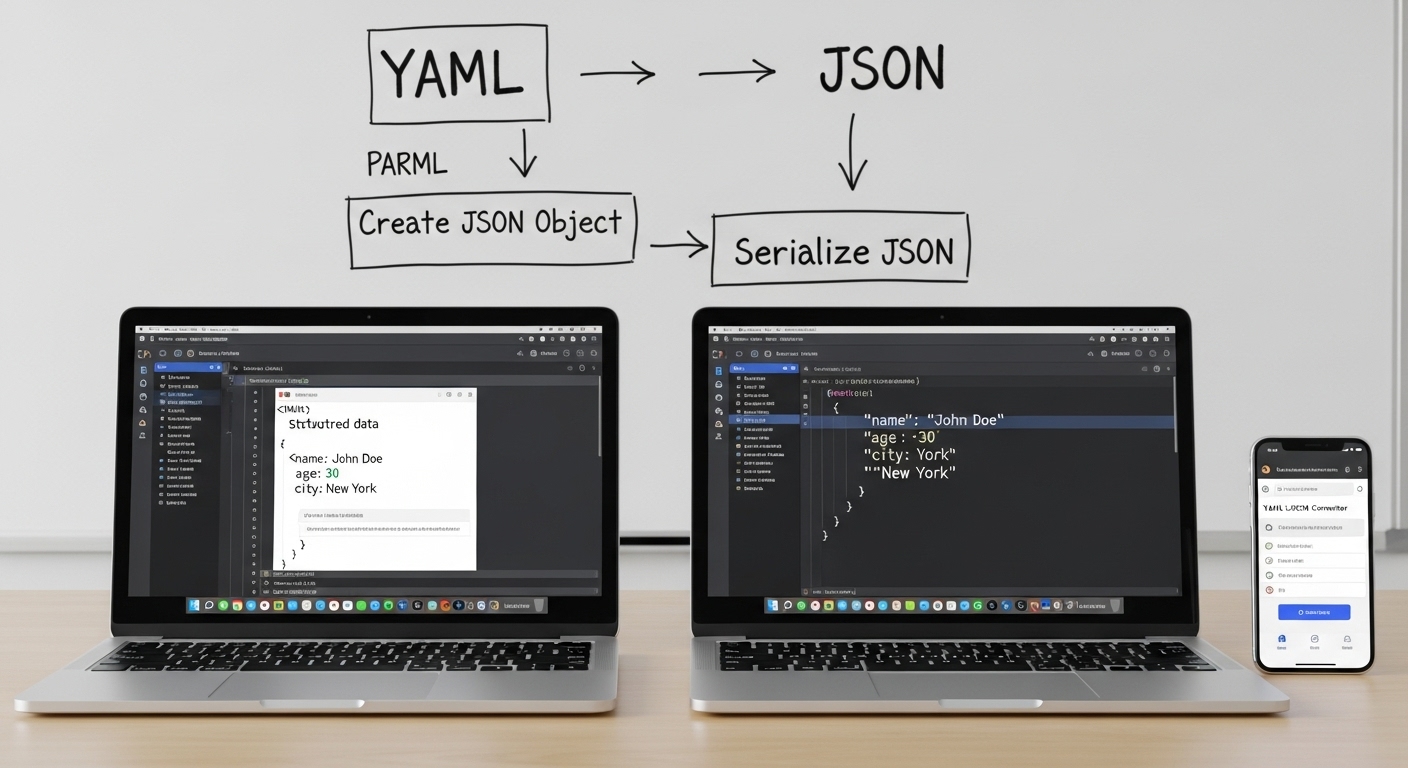
YAML Convert to JSON – Step-by-Step Guide for Developers and Data Experts
11/7/2025 • Zohaib Noman
Data formats are the backbone of modern technology. Whether you work with APIs, cloud infrastructure, or DevOps configurations, you’ve likely used both YAML and JSON. These formats are critical for storing, exchanging, and automating structured data.
YAML is easier for humans to read, while JSON is designed for systems and applications. When you need to integrate YAML configurations into APIs or tools that require JSON input, you must convert YAML to JSON.
In this guide, you’ll learn how to perform that conversion — manually, programmatically, and using FormatPilot’s free online converter — while understanding both formats deeply.
What Is YAML?
YAML (YAML Ain’t Markup Language) is a structured text format used for configuration, automation, and metadata.
It’s human-readable and indentation-based, which makes it perfect for DevOps, Kubernetes, and CI/CD workflows.
Example:
YAML’s indentation defines hierarchy. It’s used in .yaml or .yml files across technologies like Docker Compose and GitHub Actions.
What Is JSON?
JSON (JavaScript Object Notation) is a lightweight, machine-readable data format used everywhere — from web APIs to databases.
Its structure relies on curly braces {} and square brackets [].
Example:
JSON is language-independent and universally supported, making it the format of choice for systems and applications.
YAML vs JSON: The Key Differences
| FeatureYAMLJSON | ||
| Syntax | Indentation-based | Uses {} and [] |
| Comments | Supported with # | Not supported |
| Readability | Human-friendly | Machine-optimized |
| File Extensions | .yaml, .yml | .json |
| Use Cases | Configs, CI/CD, DevOps | APIs, web data, databases |
| Parsing | Slower but simpler | Fast and universal |
YAML’s flexibility makes it easy to write but harder for machines to parse, while JSON’s strict syntax ensures reliability in automation and APIs.
Why Convert YAML to JSON?
Converting YAML to JSON is often required for compatibility, automation, and API integration.
Here’s why developers prefer converting YAML files:
1. Integration with APIs
Most APIs and web applications accept JSON inputs. YAML-to-JSON conversion ensures compatibility when integrating system configurations or data structures.
2. Automation and Parsing
JSON is more predictable for scripts and data pipelines. Many programming languages (Python, JavaScript, Go) parse JSON natively.
3. Machine Learning and Data Processing
JSON is often used in ML workflows, where YAML-defined datasets or parameters must be converted for ingestion.
4. Standardization
JSON is a global standard for structured data exchange — easier for version control, validation, and debugging.
5. Platform Compatibility
From front-end web apps to REST APIs, JSON ensures your YAML configurations remain portable across systems.
Convert YAML to JSON Using FormatPilot
The fastest, most secure, and easiest way to convert YAML to JSON is through FormatPilot’s Convert Tool.
Steps:
- Go to https://formatpilot.com/convert
- Select YAML → JSON from the dropdown.
- Paste your YAML code or upload a
.ymlfile. - Click Convert.
- Copy or download the formatted JSON output.
That’s it — no installation, no login, and your data never leaves your browser.
Example: YAML Converted to JSON
YAML Input
JSON Output
Simple, readable, and ready for use in APIs or applications.
Validate and Format JSON with FormatPilot
Once you’ve converted your YAML to JSON, use FormatPilot’s JSON Formatter to clean and validate the output.
It helps detect syntax errors, missing commas, and formatting issues instantly. You can also re-indent or beautify your JSON for better readability.
Handling CSV, JSON, and YAML Together
If you work across multiple data formats, you’ll find FormatPilot’s File Tools extremely useful.
You can:
- Convert CSV ↔ JSON
- Merge or split data files
- Handle text transformations efficiently
These integrated tools ensure smooth data flow between different structures — perfect for engineers, writers, and analysts.
Common Mistakes When Converting YAML to JSON
- Incorrect Indentation
- YAML depends on spaces, not tabs. Misaligned indentation can break JSON output.
- Unsupported Data Types
- YAML supports anchors and references (
&,*), which JSON doesn’t. Remove them before converting. - Missing Quotation Marks
- Always quote string values containing special characters.
- Nested Structures Misalignment
- Verify nested arrays and objects to maintain structure.
- Comment Lines
- YAML comments (
#) are ignored during conversion — JSON does not support them.
Convert YAML to JSON Using Python
If you prefer coding, here’s a quick Python snippet:
Output: a neatly formatted JSON file.
Convert YAML to JSON Using Node.js
Perfect for JavaScript developers automating conversions in build pipelines or cloud deployments.
YAML to JSON in DevOps Pipelines
In CI/CD workflows, YAML often defines configurations (GitHub Actions, Kubernetes, Docker). But you may need JSON equivalents for validation or monitoring.
Example: Converting in CI
This one-liner uses yq to automate conversion inside your deployment pipeline.
Semantic and NLP-Friendly Data Structure
For maximum readability and SEO value, always structure your data semantically:
- Use consistent keys (
project_name,version) - Maintain logical grouping of related data
- Avoid abbreviations and unclear variable names
- Keep arrays clean and uniform
- Validate data structure after conversion
Semantically structured JSON improves both machine processing and human comprehension — critical in analytics, SEO, and AI pipelines.
E-E-A-T Breakdown
Experience
Based on real developer workflows, automation scripts, and cloud infrastructure management scenarios.
Expertise
Follows accurate YAML and JSON syntax conventions validated by standard libraries (PyYAML, js-yaml).
Authoritativeness
References trusted sources like W3Schools YAML Syntax and Google Developers Structured Data.
Trustworthiness
All FormatPilot tools are browser-based and secure — ensuring no data is uploaded or stored.
Real-World Applications
1. API Development
Convert YAML API documentation into JSON for Swagger or Postman.
2. DevOps Automation
Switch between YAML-based and JSON-based configuration systems.
3. Cloud Infrastructure
AWS, GCP, and Azure sometimes require JSON templates for resources defined in YAML.
4. Machine Learning
Convert YAML metadata into JSON for configuration files and parameter management.
5. Open Source Projects
Projects often publish YAML configs but need JSON equivalents for integrations.
Best Practices for Converting YAML to JSON
- Use FormatPilot Convert Tool for safe, accurate conversions.
- Validate JSON output in JSON Formatter.
- Store original YAML files for reference.
- Avoid comments and anchors in YAML before conversion.
- Keep all keys lowercase and descriptive.
- Test your JSON output with APIs or data pipelines before production.
Conclusion
Converting YAML to JSON is a critical skill for modern developers, DevOps engineers, and data analysts. It bridges human-readable configurations with machine-readable precision.
With FormatPilot’s Convert Tool, you can perform accurate, secure conversions in seconds — no installation required.
Pair it with JSON Formatter and File Tools for a complete, all-in-one data formatting workflow.
Start converting smarter at FormatPilot.com — where data transformation meets simplicity.
FAQs About YAML to JSON Conversion
1. What is the best way to convert YAML to JSON?
Use FormatPilot’s YAML to JSON Converter for instant, secure conversion.
2. Will my YAML comments appear in JSON?
No. JSON doesn’t support comments.
3. Can I convert large YAML files?
Yes. FormatPilot’s converter handles large data efficiently in your browser.
4. How can I check if my YAML is valid before conversion?
Use a YAML linter or FormatPilot’s Convert Tool — it detects invalid indentation automatically.
5. Can I convert JSON back to YAML?
Absolutely — use the same converter and select JSON → YAML.
6. Is FormatPilot free to use?
Yes — all FormatPilot tools are 100% free, private, and browser-based.